Configuration d’un capteur
The following steps describe how to configure the Multitech as a LoRa to Modbus TCP gateway.
Start by connecting to the web interface of your Multitech.
Provisioning
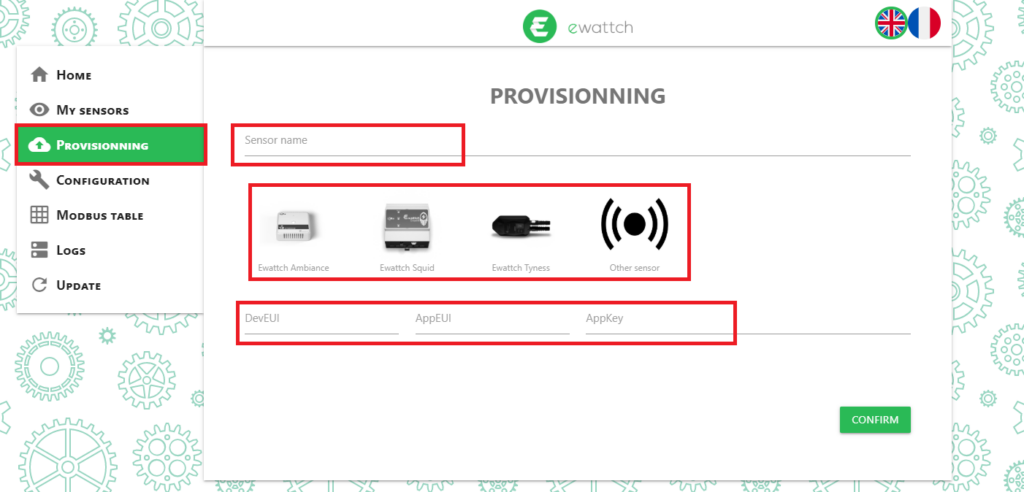
Go to the “Provisioning” section.
- Enter a name for your sensor
- Select its type
- Enter its three LoRaWAN keys (DevEUI, AppEUI, and AppKey)
Enabling Modbus
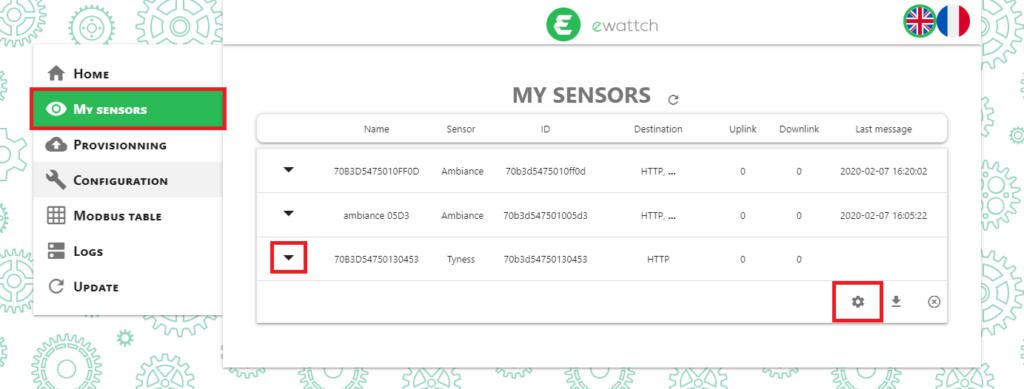
Your sensor now appears in the “My sensors” section.
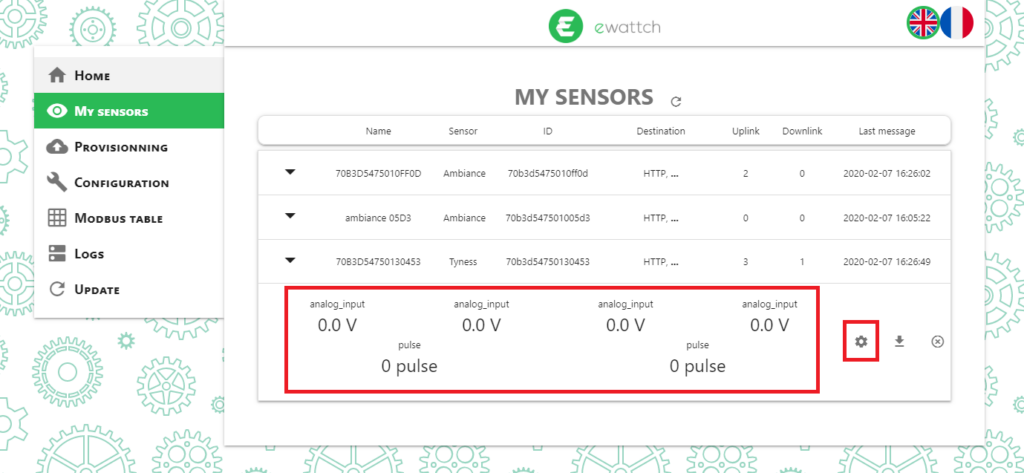
- Click the arrow on the left of the sensor to expand it
- Click the gear icon to access its settings
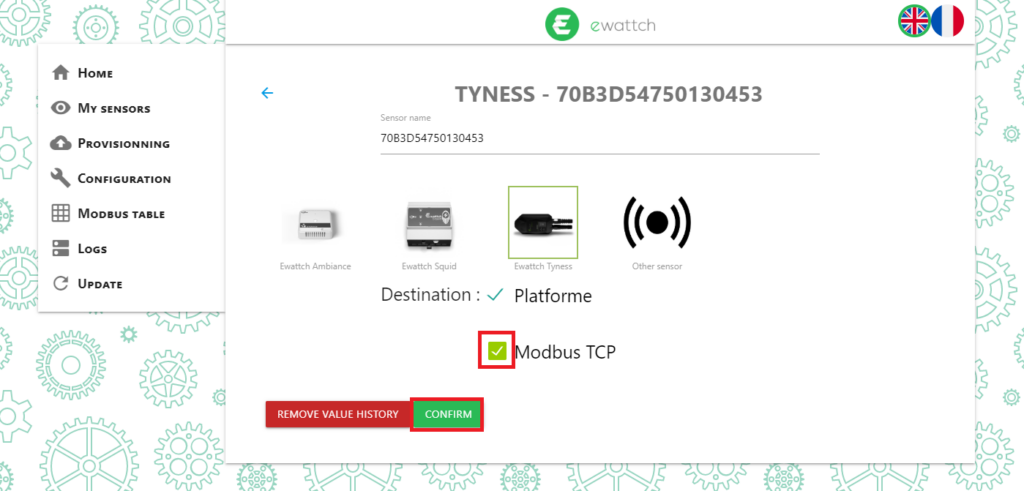
- Check the “Modbus TCP” box
- Click the “CONFIRM” button to enable Modbus for this sensor
Data Configuration
The next steps describe how to add the sensor data to the Multitech Modbus table.
- First, the Multitech must receive a transmission containing the sensor data. The received data will appear in the sensors section.
- Then click the gear icon to access the sensor configuration
- Click the gear icon again to access the sensor Modbus configuration
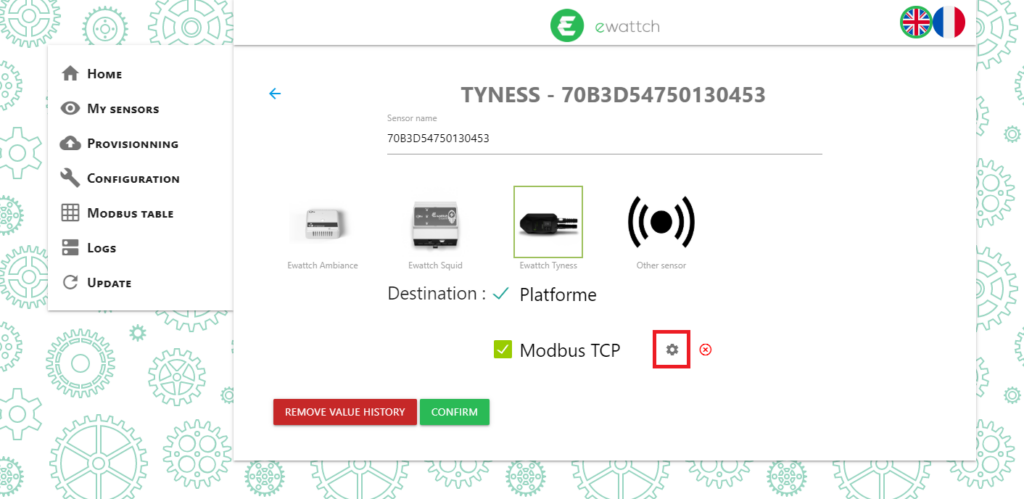
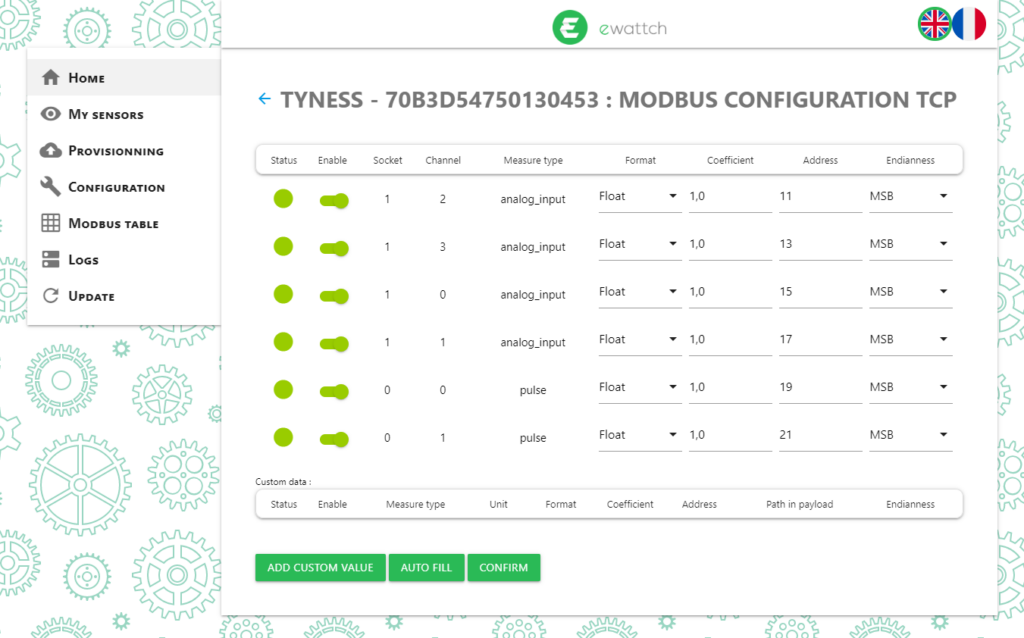
The received data is listed on this page.
- Select in the “Enable” column the data to add to the Modbus table
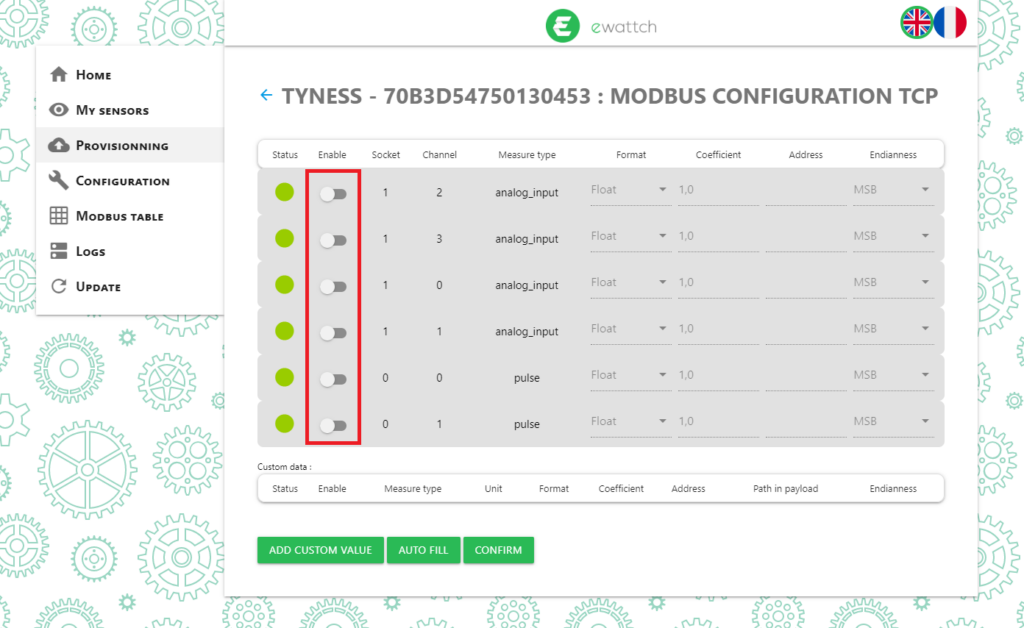
For each data point, it is possible to configure its format in the Modbus table, a scaling multiplication factor, its address in the table, and its endianness.
The “AUTO FILL” button automatically assigns Modbus addresses to the data.
- Configure your data
- Click the “CONFIRM” button
The next data received by the Multitech will now be written and available in the Modbus table.