Scan to Cloud – User Guide
Objective
This guide will show you how to navigate and add gateways, sensors, as well as their inputs and dashboards using Scan to Cloud
Prerequisites
Required for use
- A phone with a camera or product information (MAC addresses, EUID) or any other device capable of opening a web browser
- An internet connection
- An Ewattch Cloud account
- Be part of an organization on Ewattch Cloud
- Be part of a structure on Ewattch Cloud
Compatibility
- Products sold by Ewattch after 01/01/2024 and not already present on Ewattch Cloud
Usage Procedure
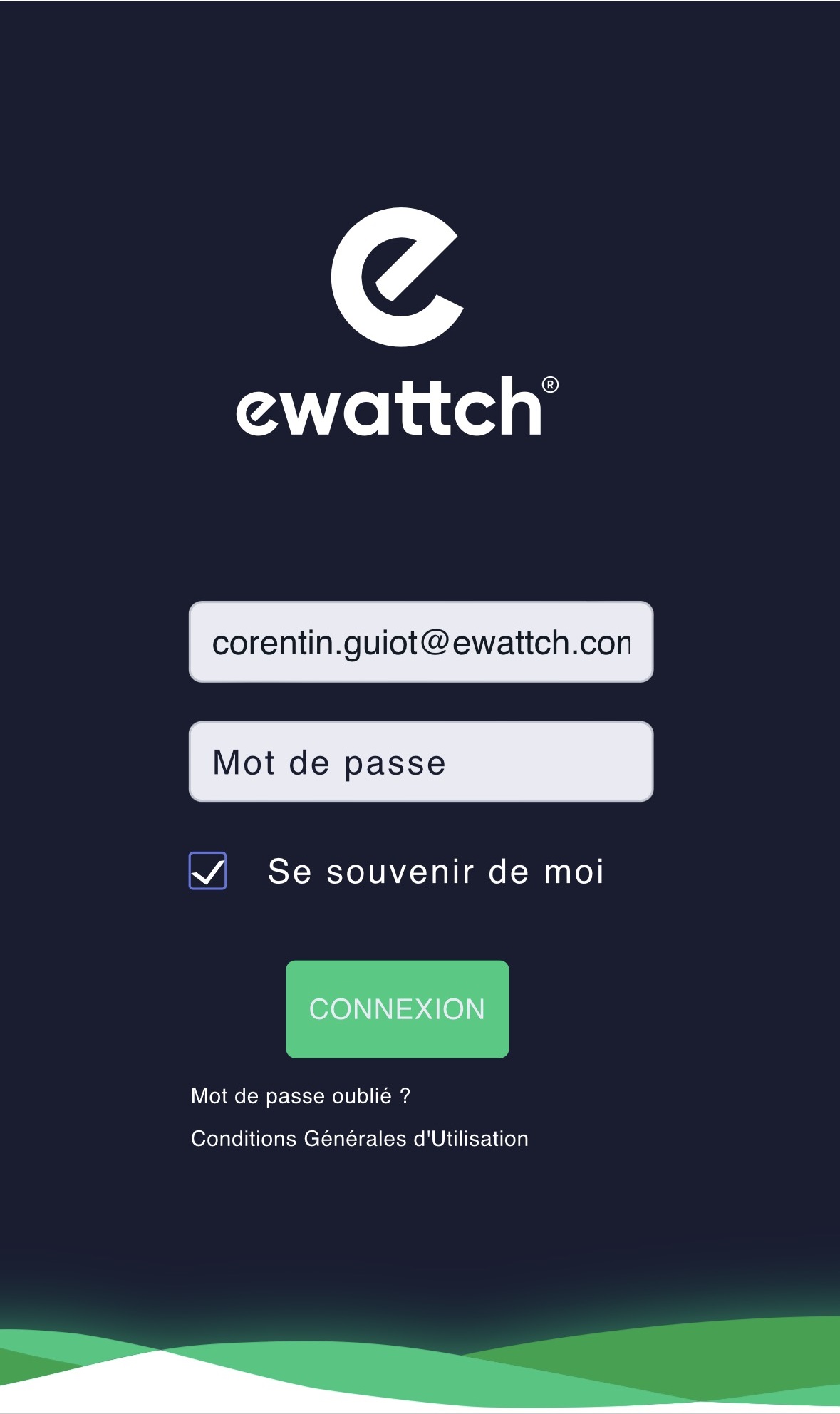
- In a browser, type https://stc.ewattch.cloud
- Log in using your Ewattch Cloud credentials
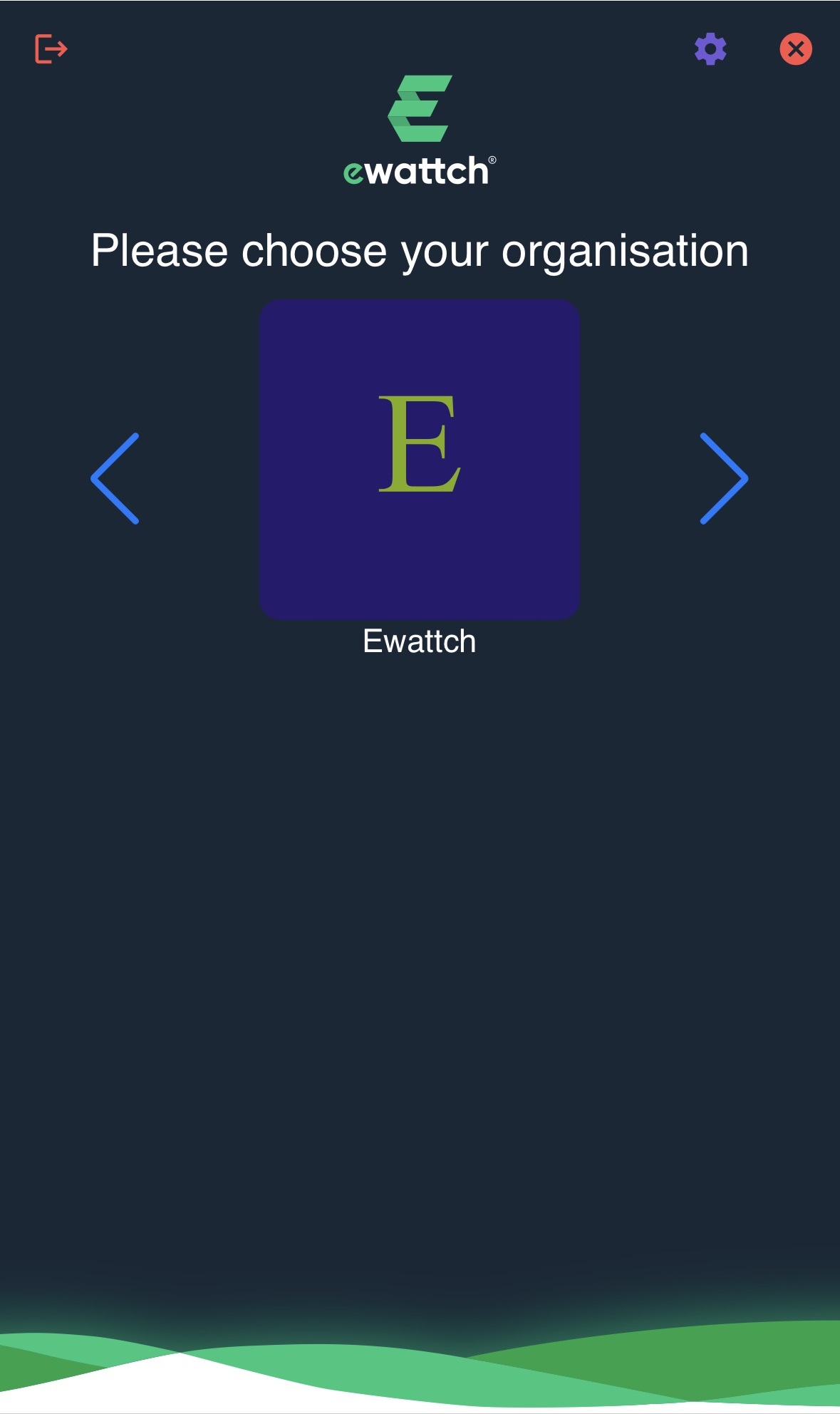
- You can select an organization by navigating with the left and right arrows and clicking on the desired organization icon
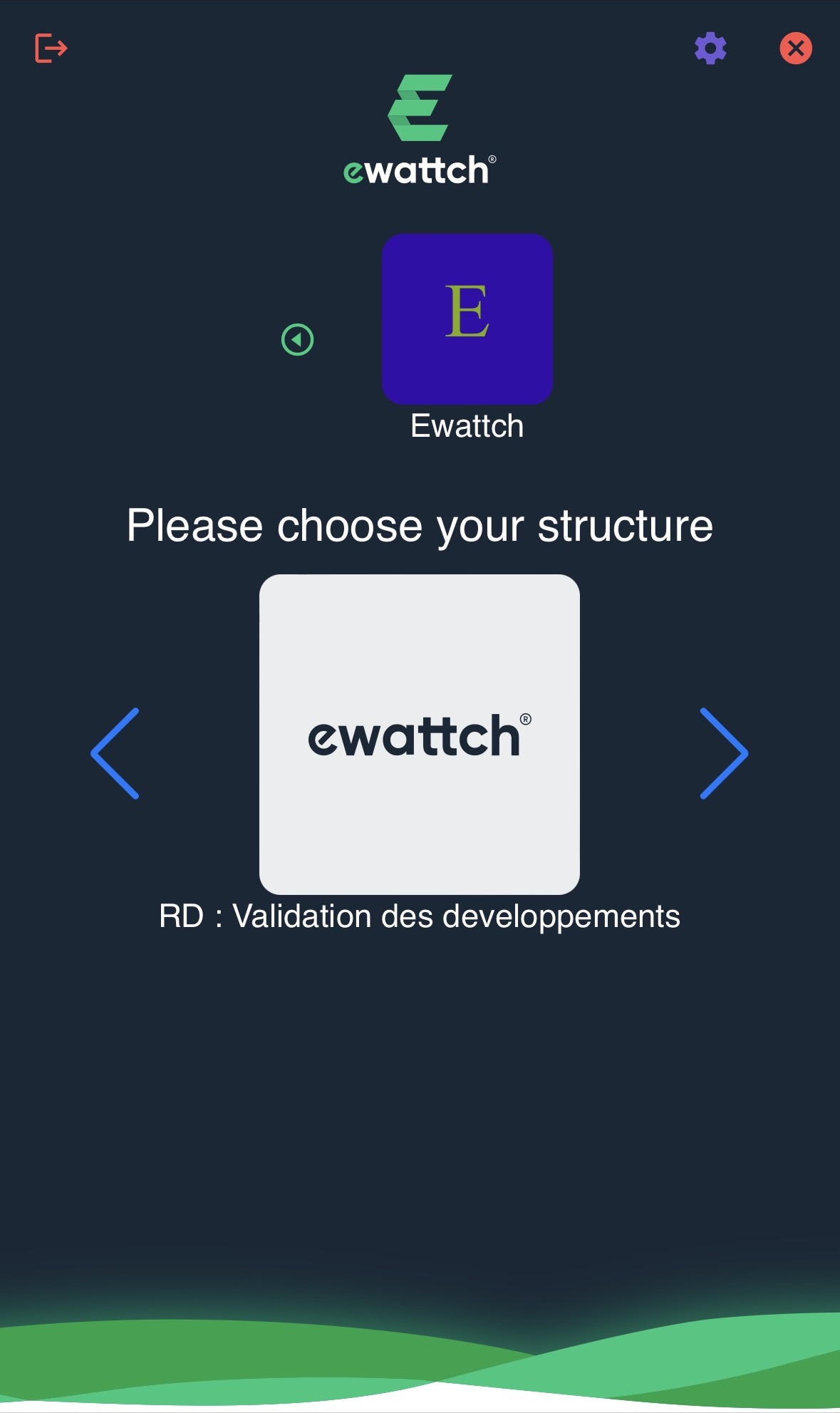
- Once the organization is selected, you can choose a structure by navigating with the left and right arrows and clicking on the desired structure icon
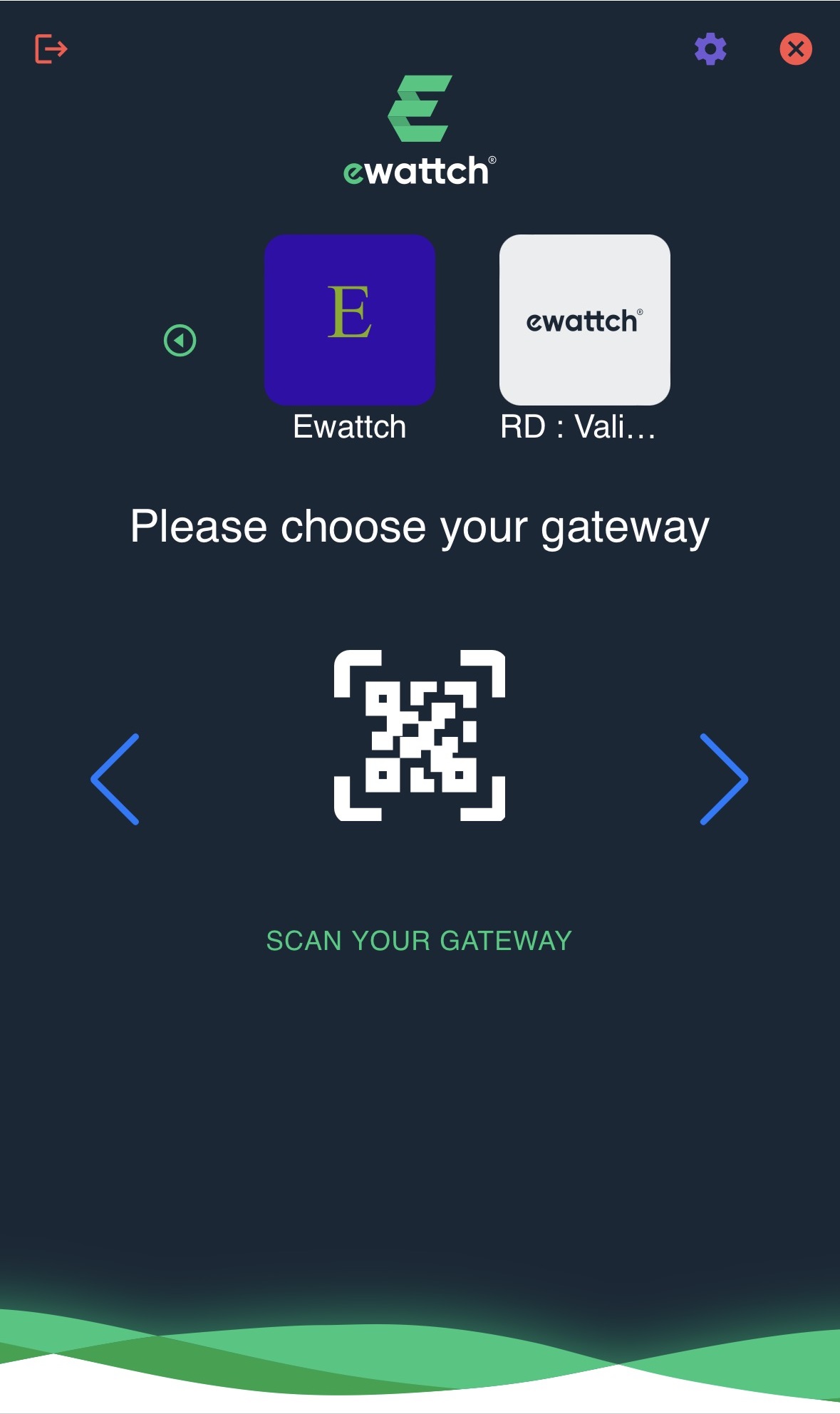
- You can select the gateway by navigating with the left and right arrows and clicking on the desired gateway icon
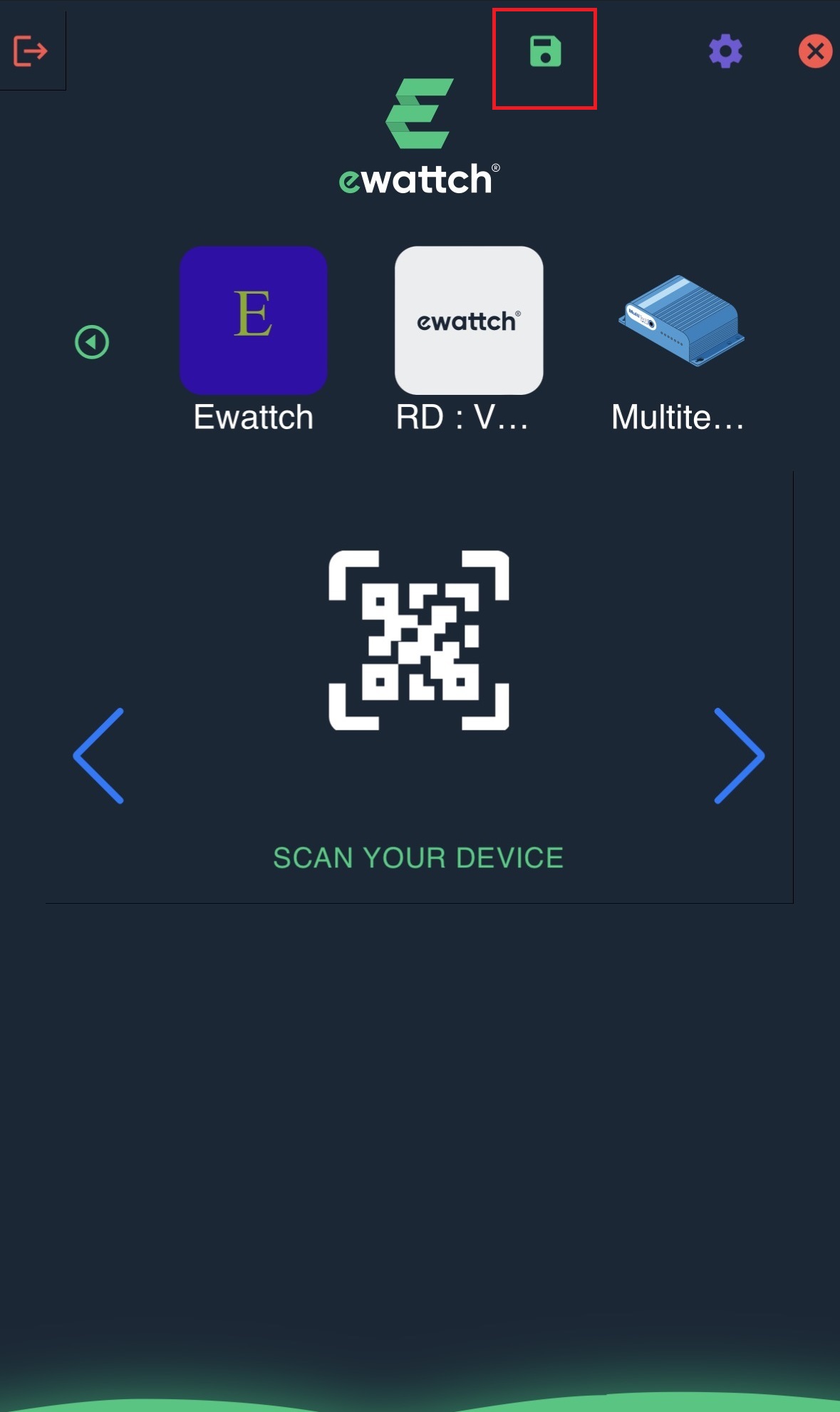
- If you want to add a gateway, click on the scan icon
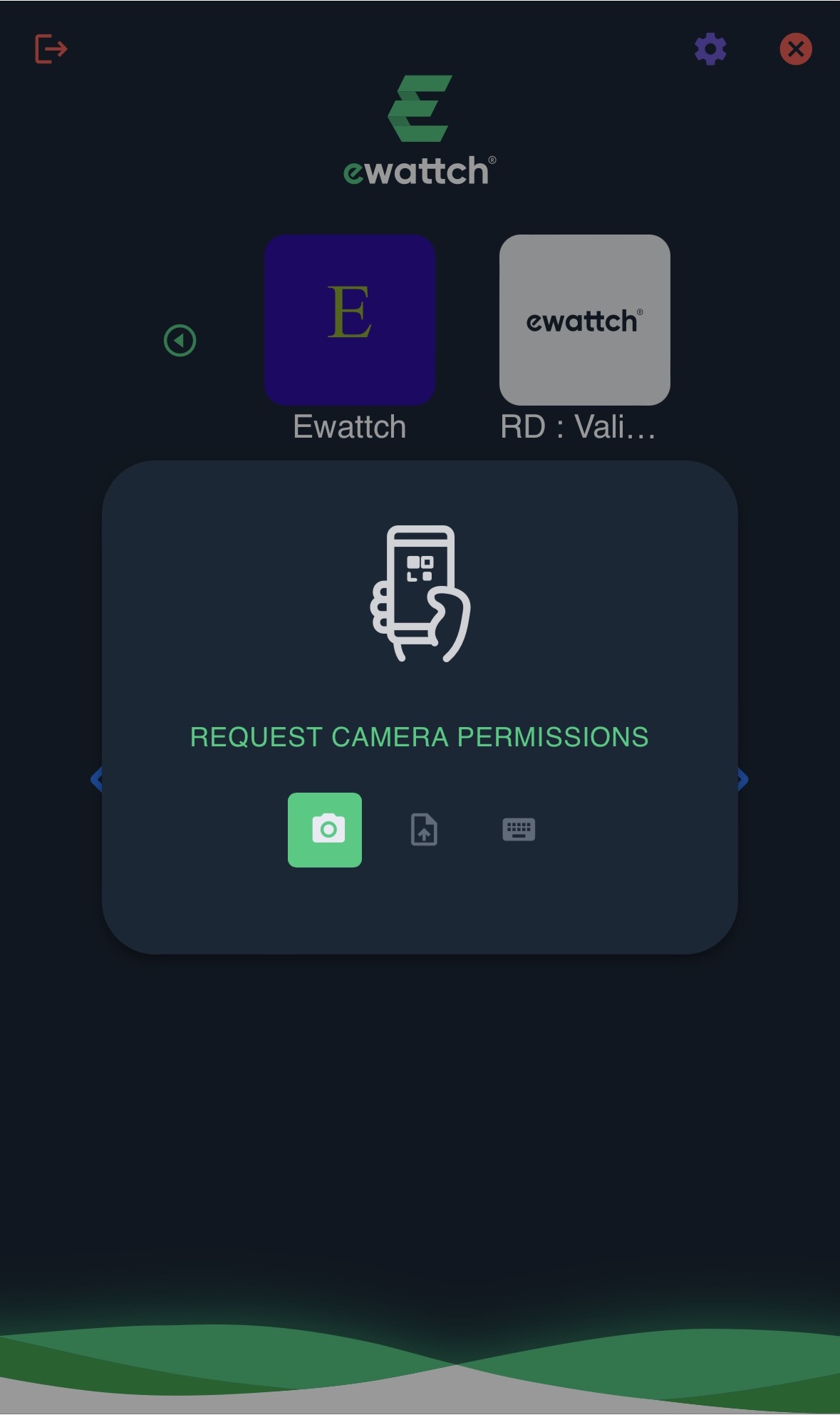
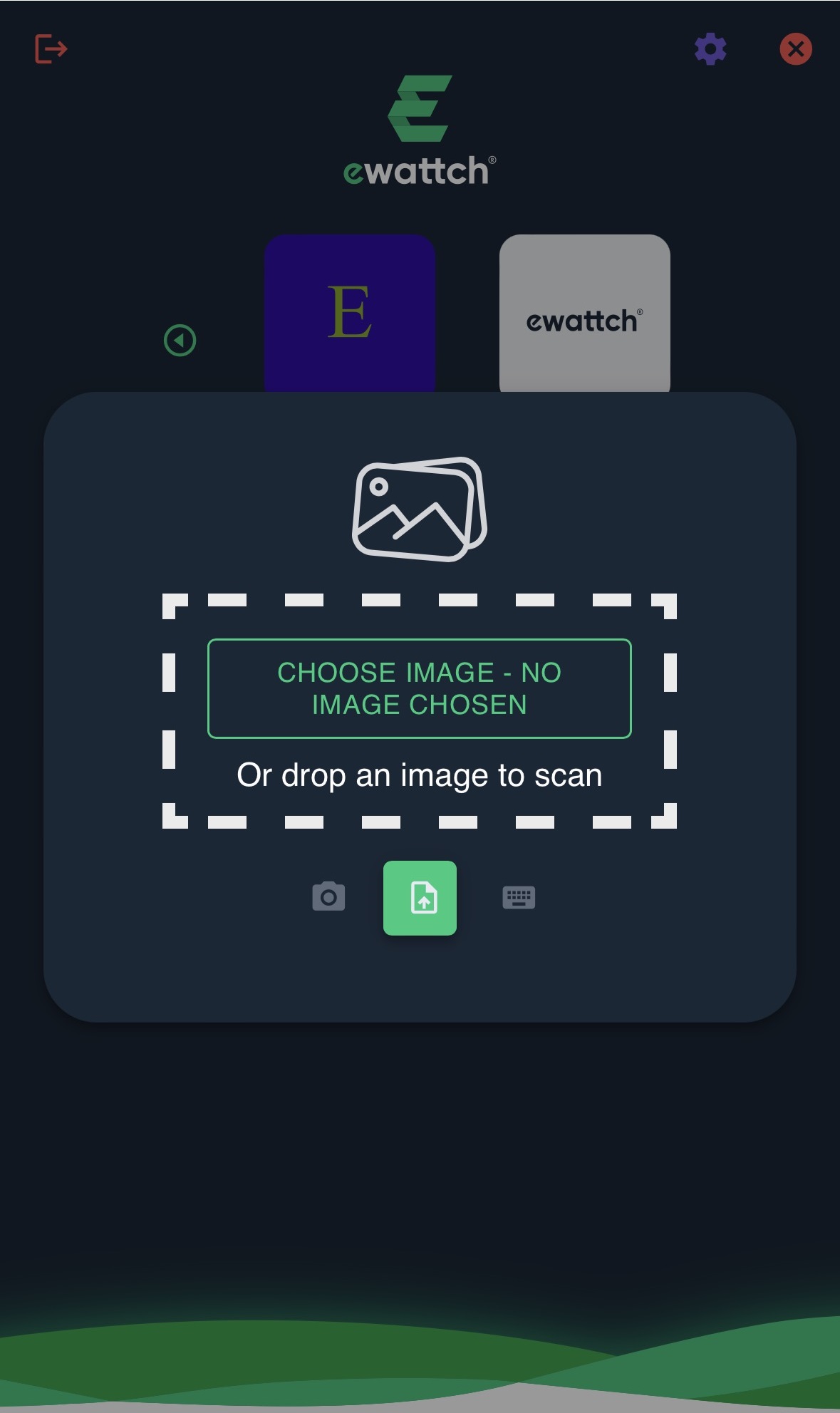
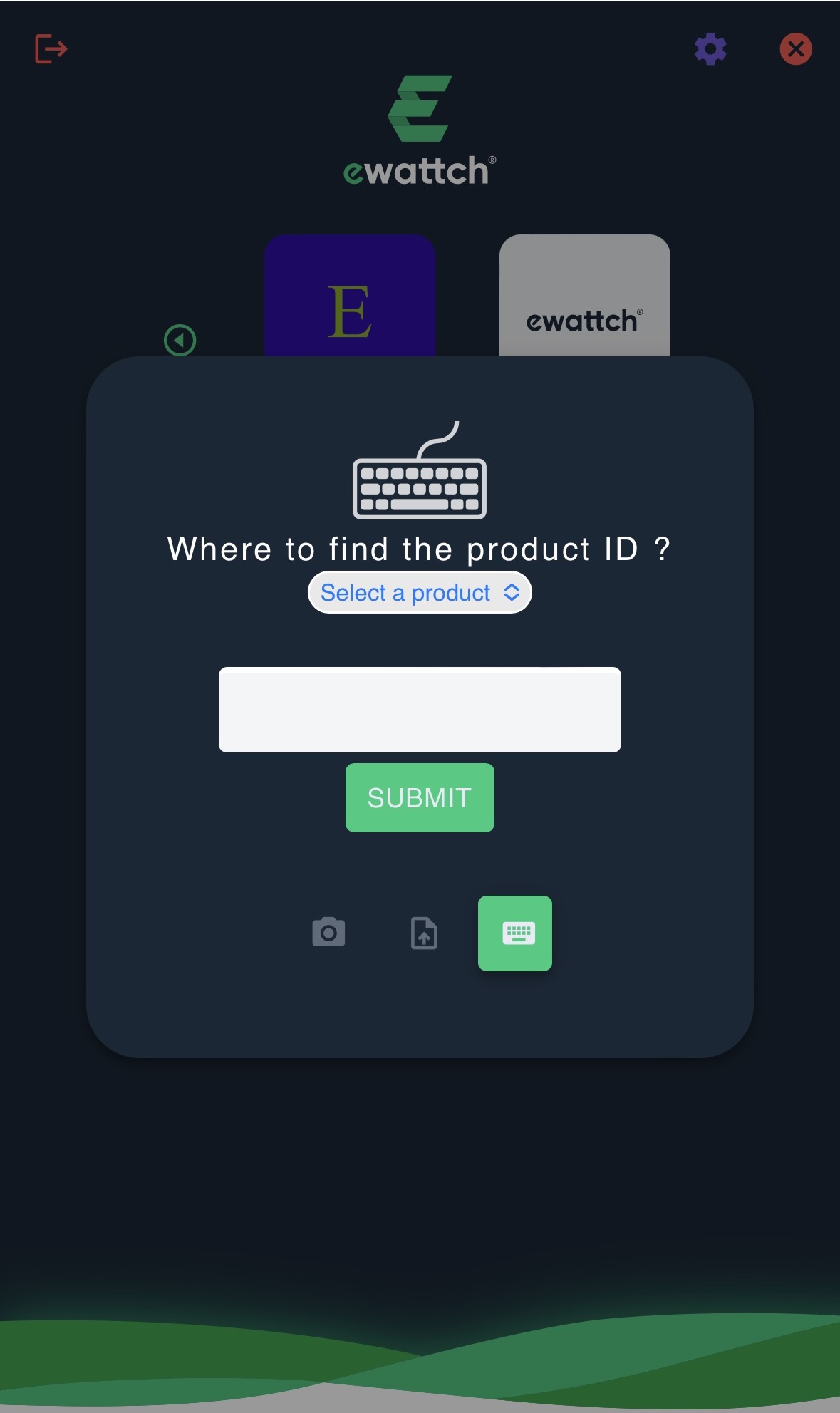
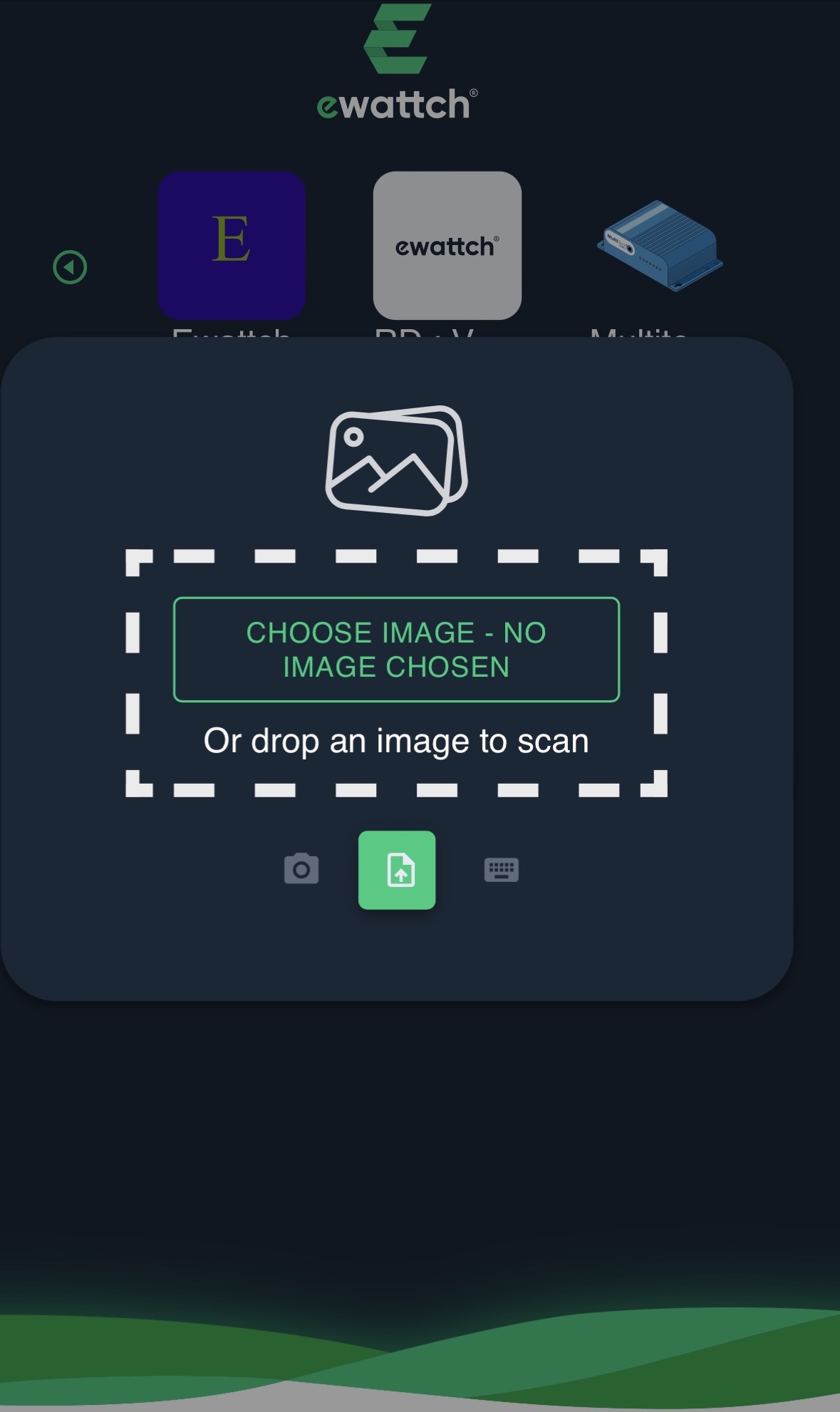
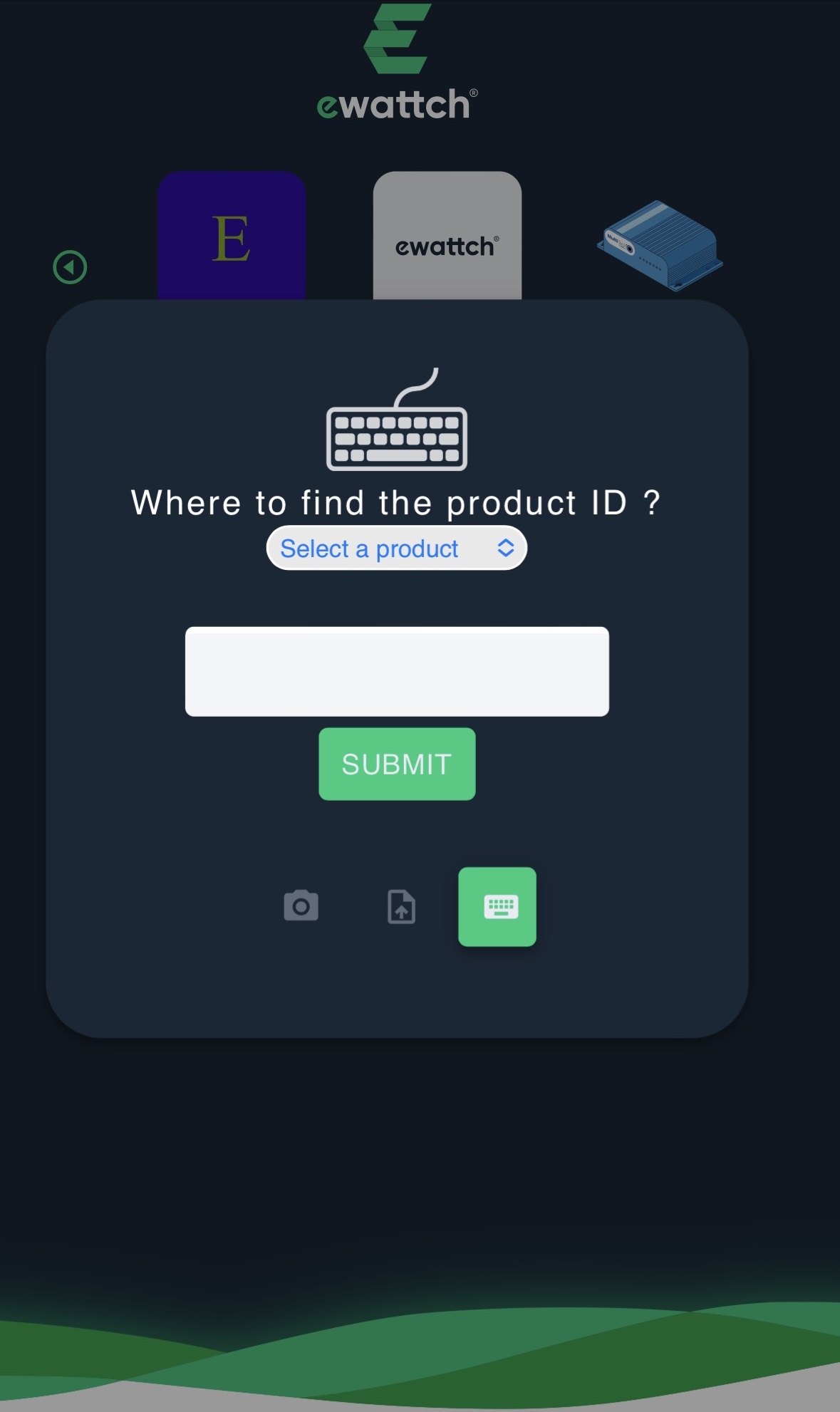
- If you selected scanning a new gateway, you have three options: Scan using a camera, import a QR code image of a product, or enter the MAC address or EUID of the product
Gateway scanning
- Select scan (left option) and click “request camera permissions“
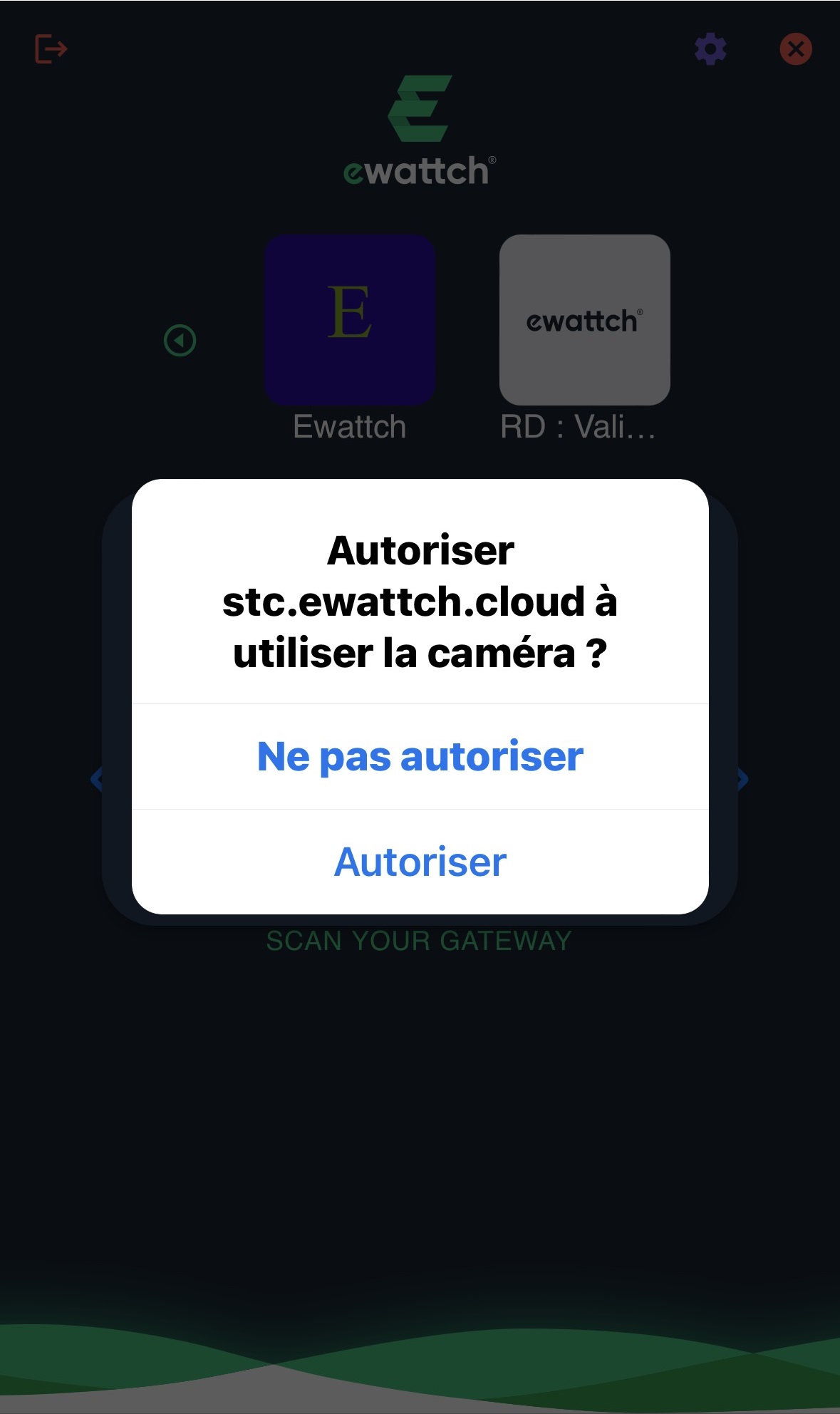
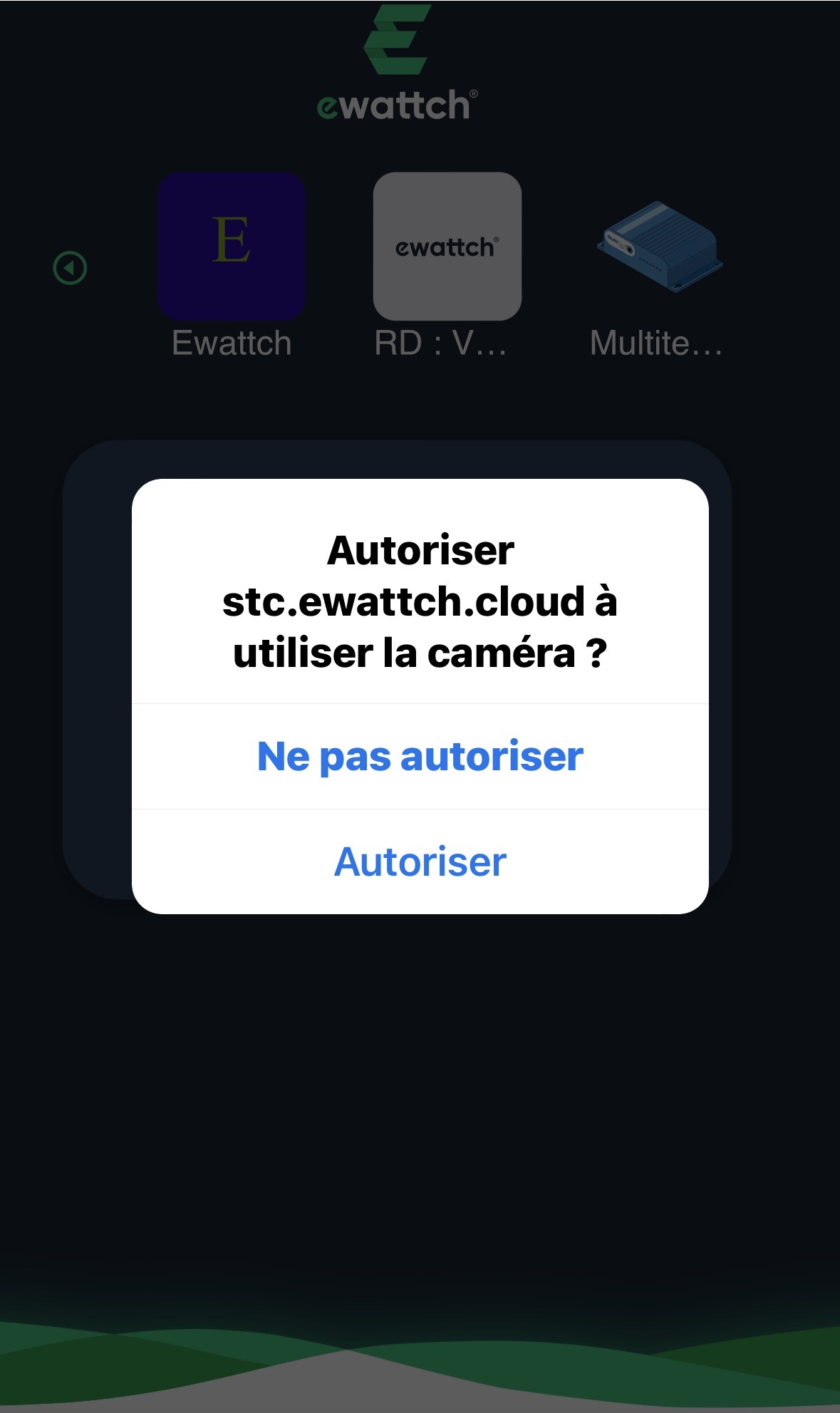
- Allow camera access
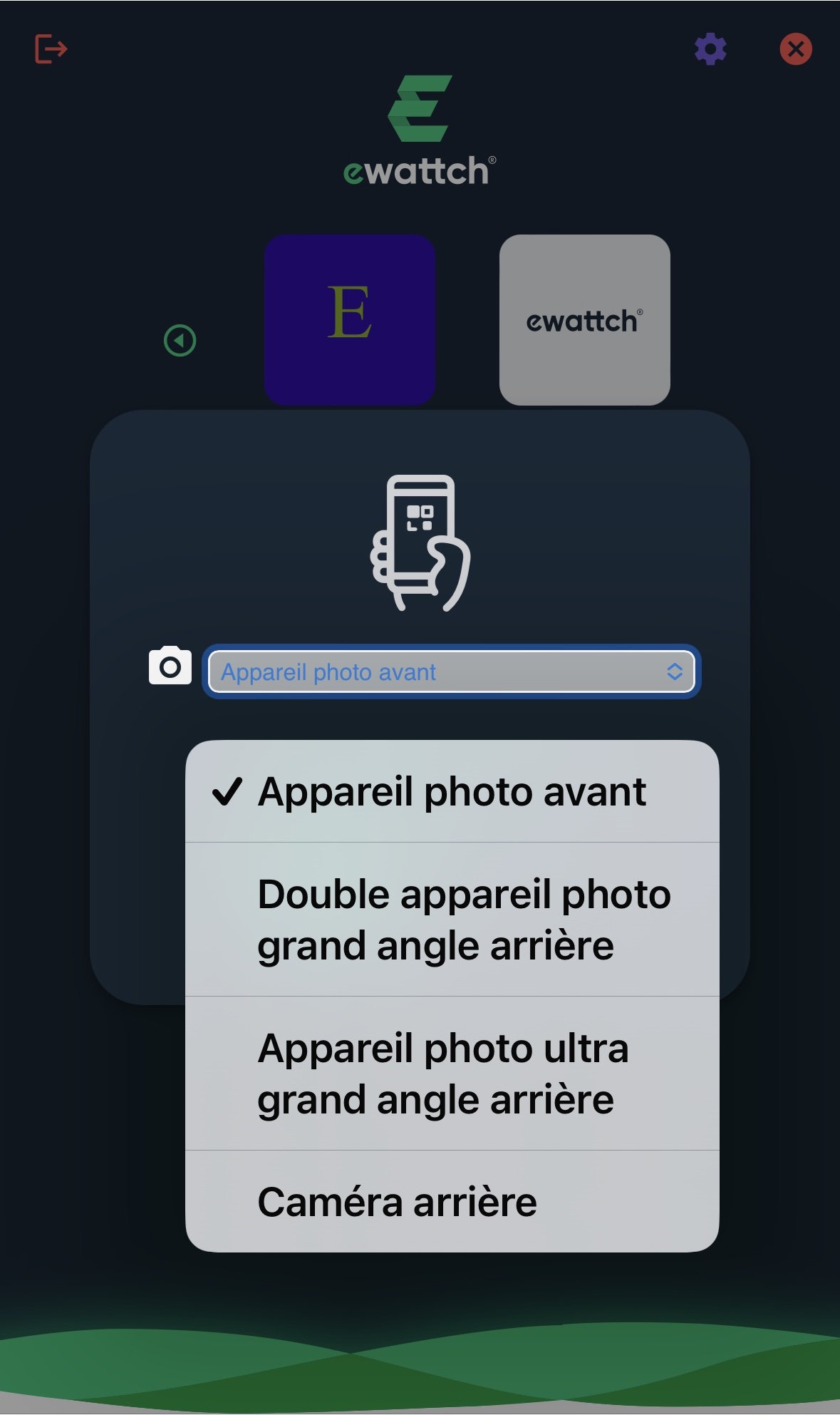
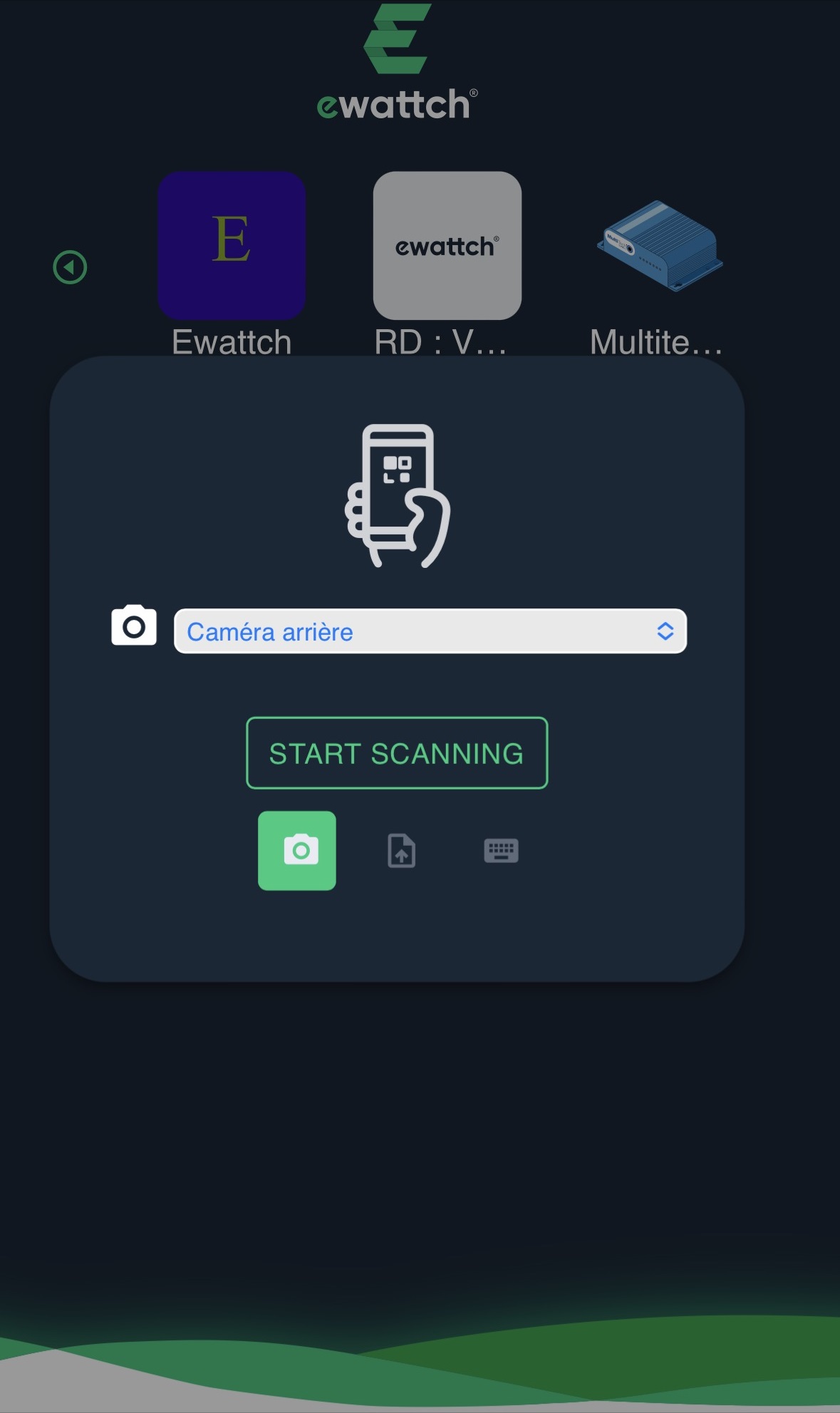
- Select the camera to use and click “start scanning“
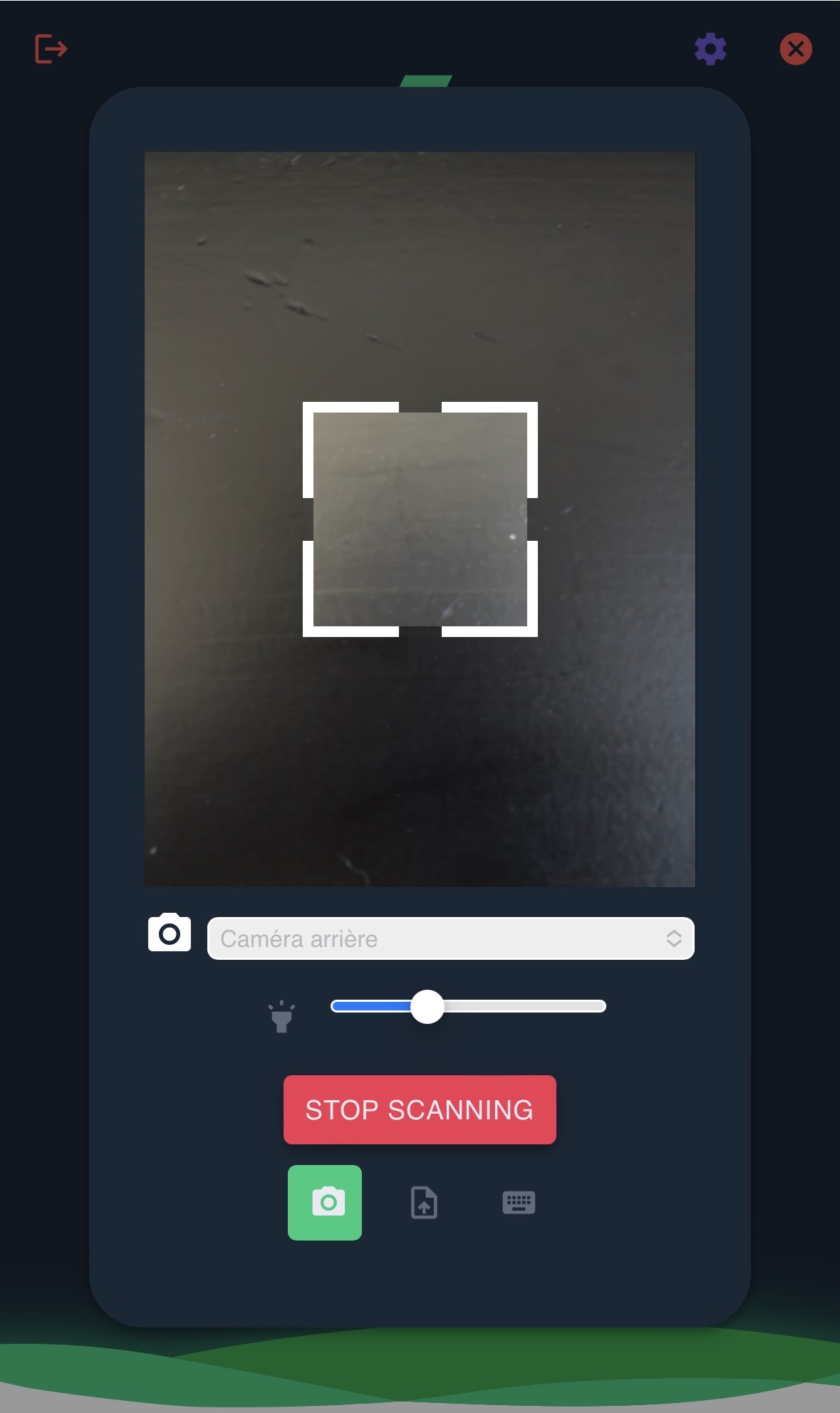
- Scan the product. You can zoom using the slider below the scan
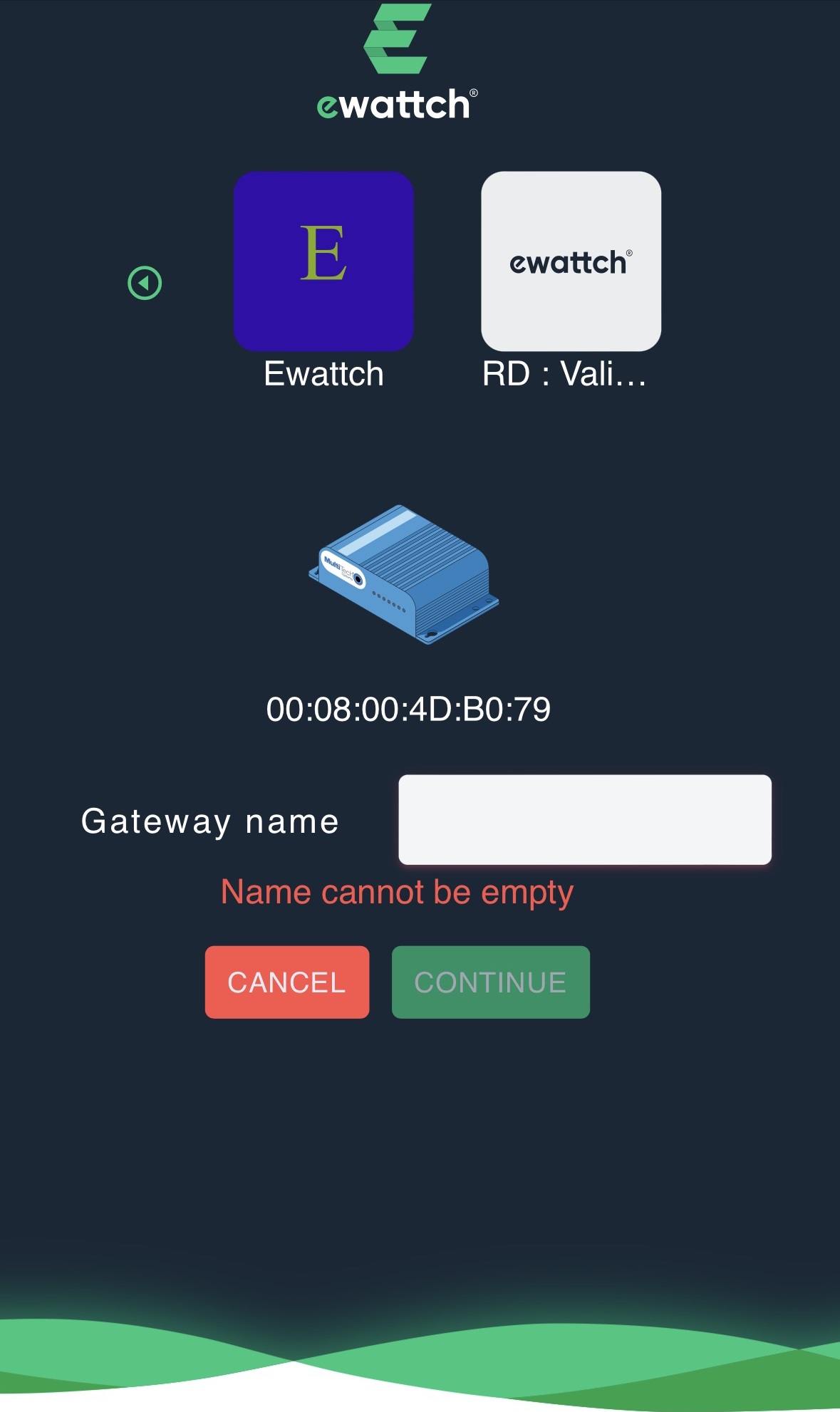
- Once the gateway has been scanned or added, you just need to assign it a name
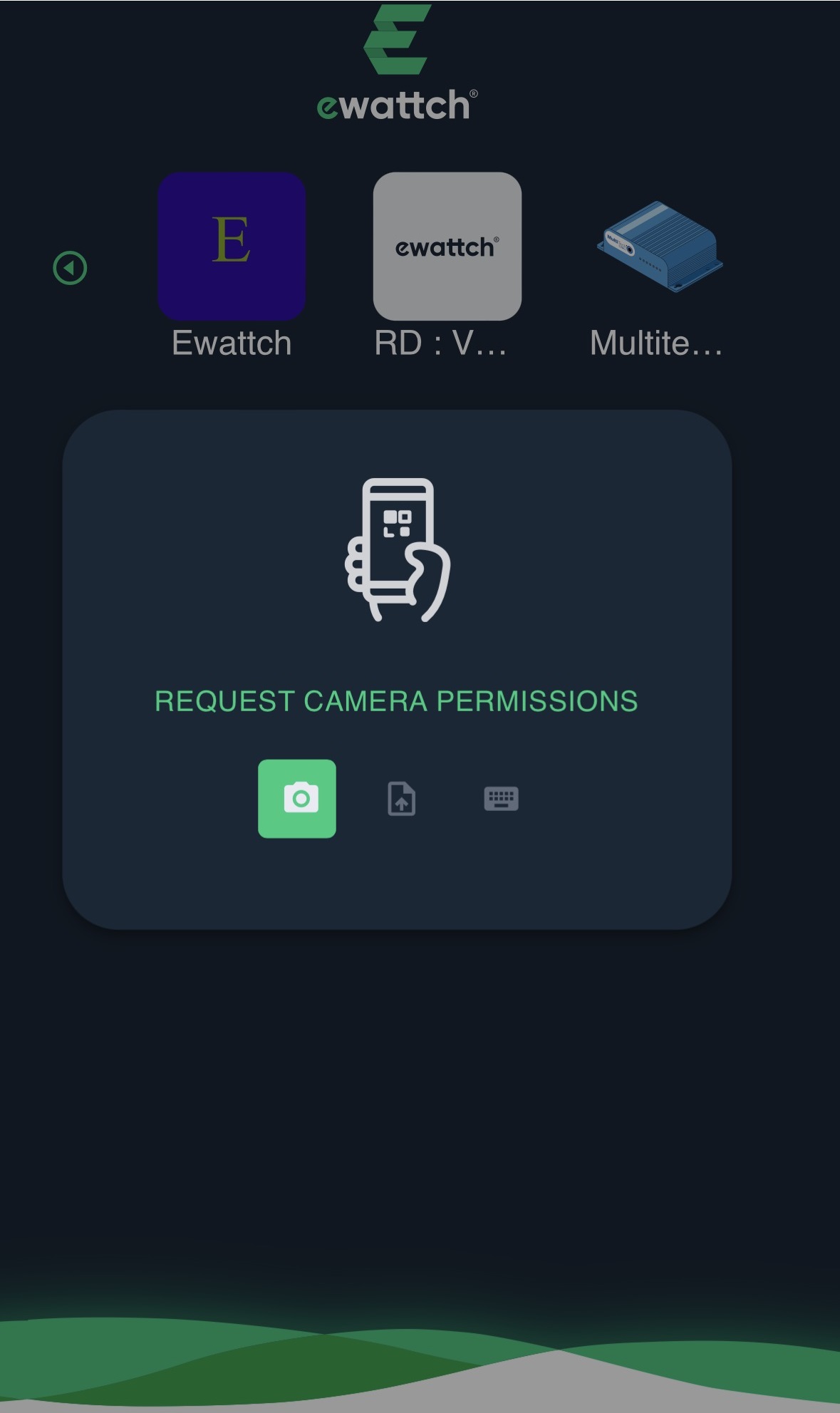
- Once your gateway is added or selected, you can now add a sensor
- You have three options: scan using a camera, import a QR code image, or enter the MAC address or EUID of the product
Sensor scanning
- Select scan (left option) and click “request camera permissions“
- Allow camera access
- Select the camera to use and click “start scanning“
- Scan the product. You can zoom using the slider below the scan
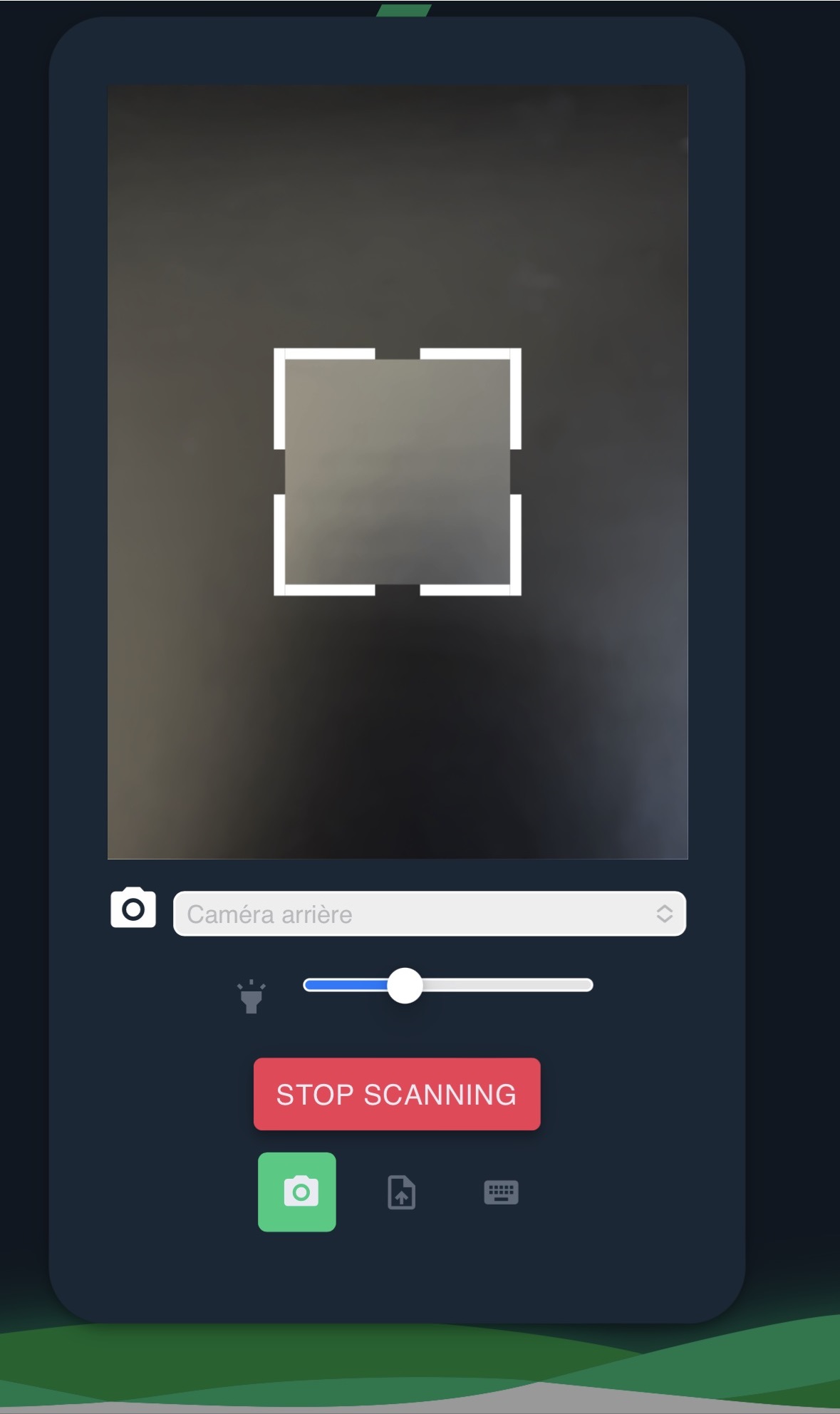
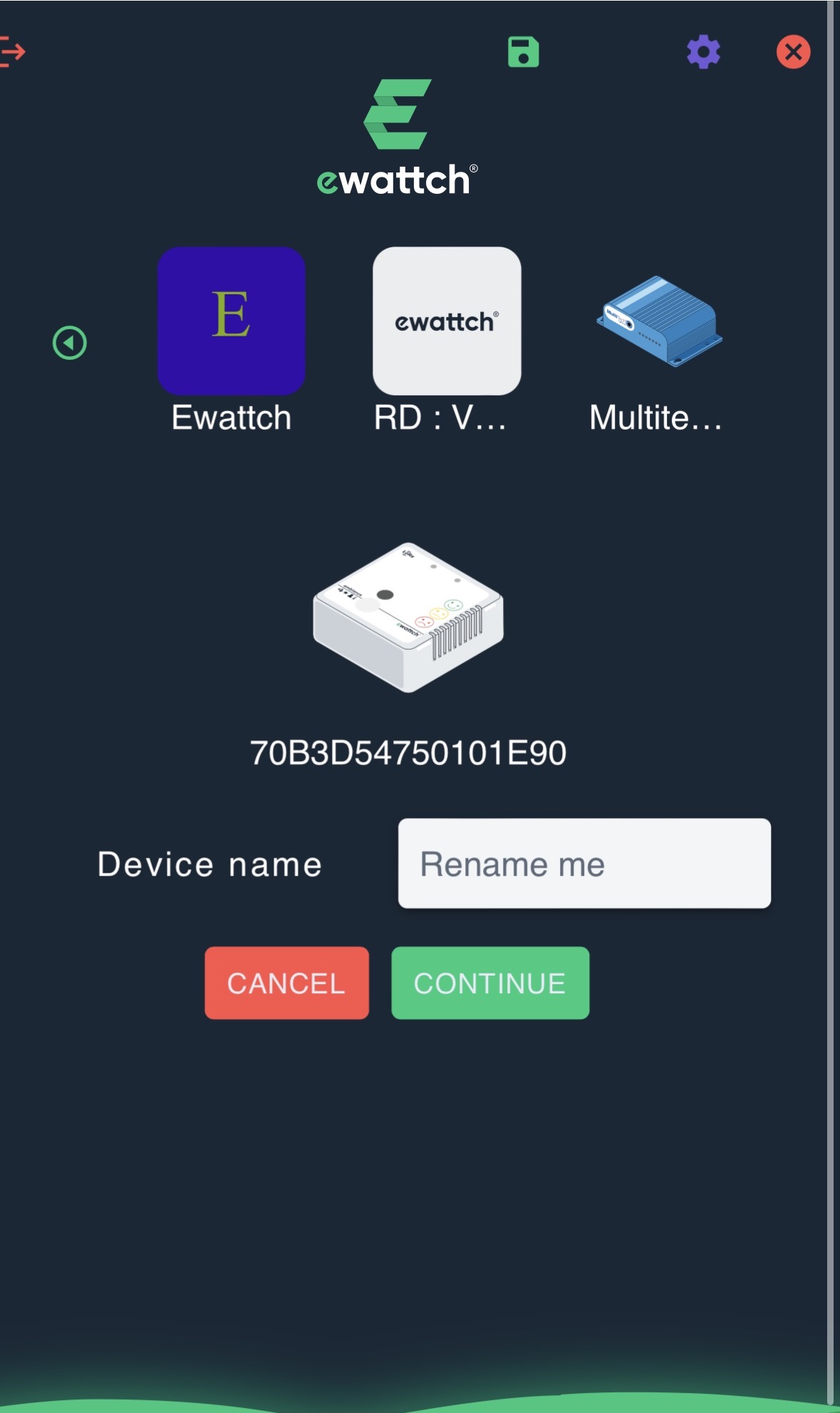
- Name your sensor
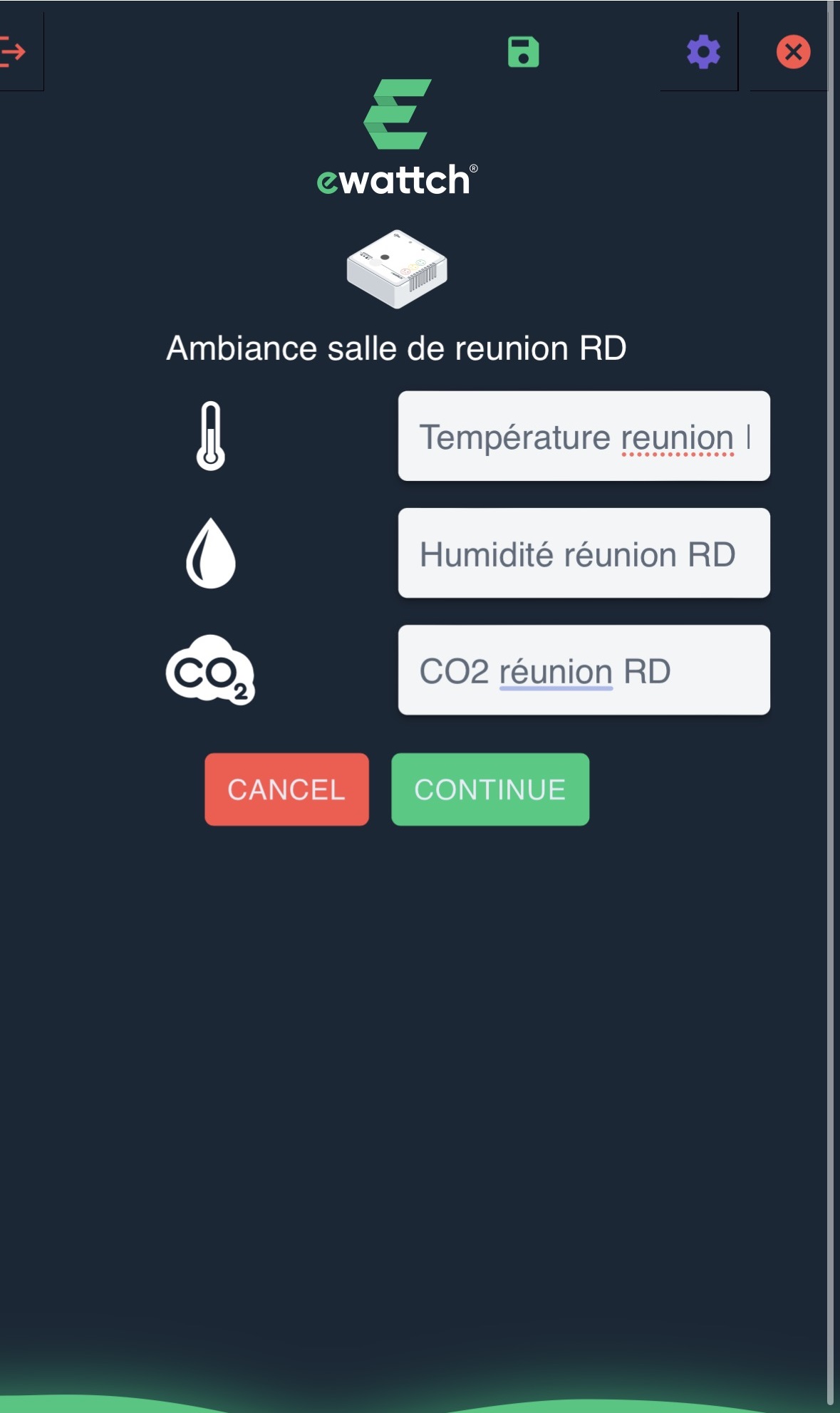
- Assign names to the sensor inputs
- If you want to rename your inputs, go to “EDIT INPUTS“
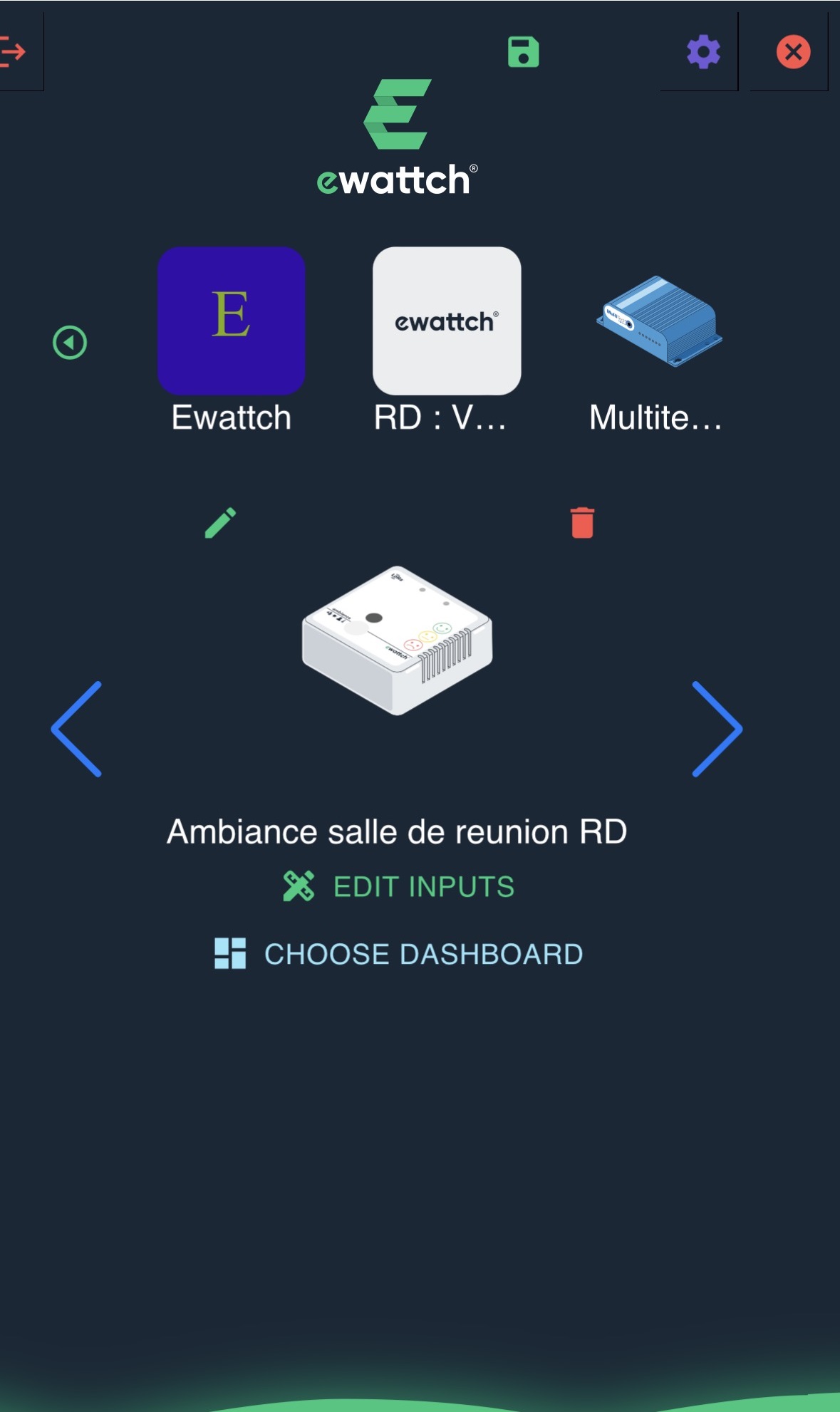
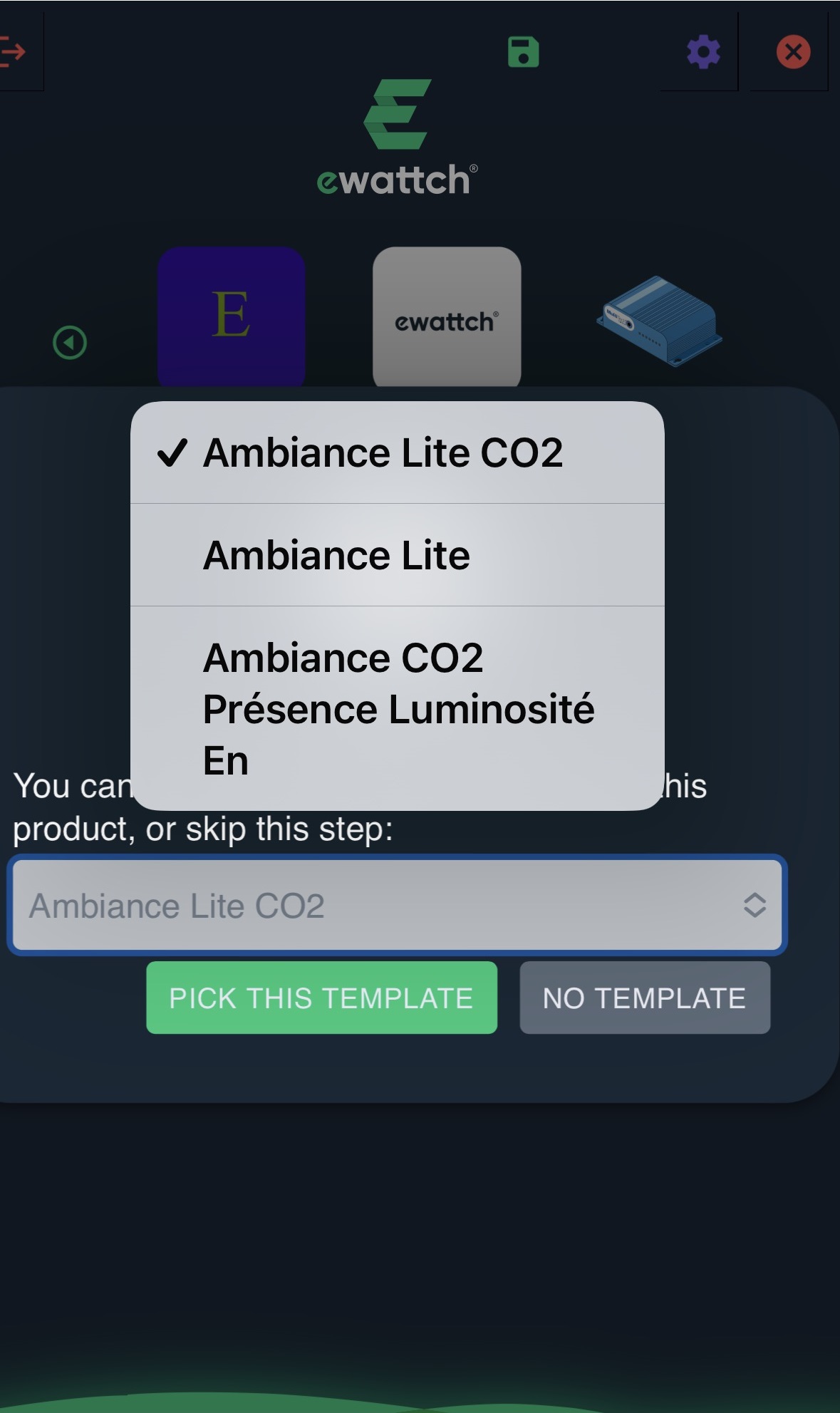
- You can choose a dashboard template to create from CHOOSE DASHBOARD
- Select the dashboard to create and click PICK THIS TEMPLATE
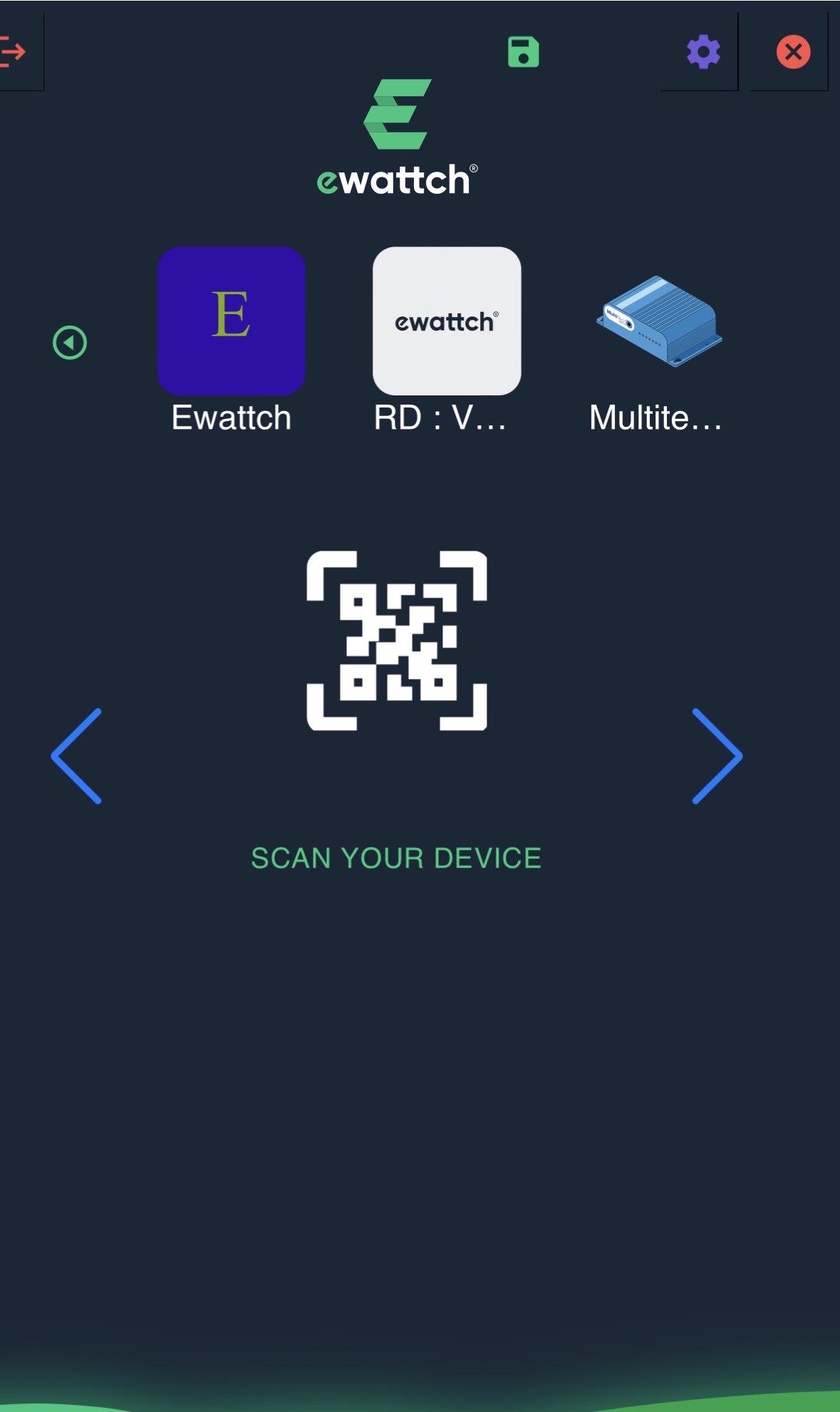
- To add another sensor, use the arrows to return to SCAN YOUR DEVICE and repeat the procedure
- When you have finished adding all your products, naming them, and choosing the dashboards to create, you can save by clicking the floppy disk icon at the top of the menu
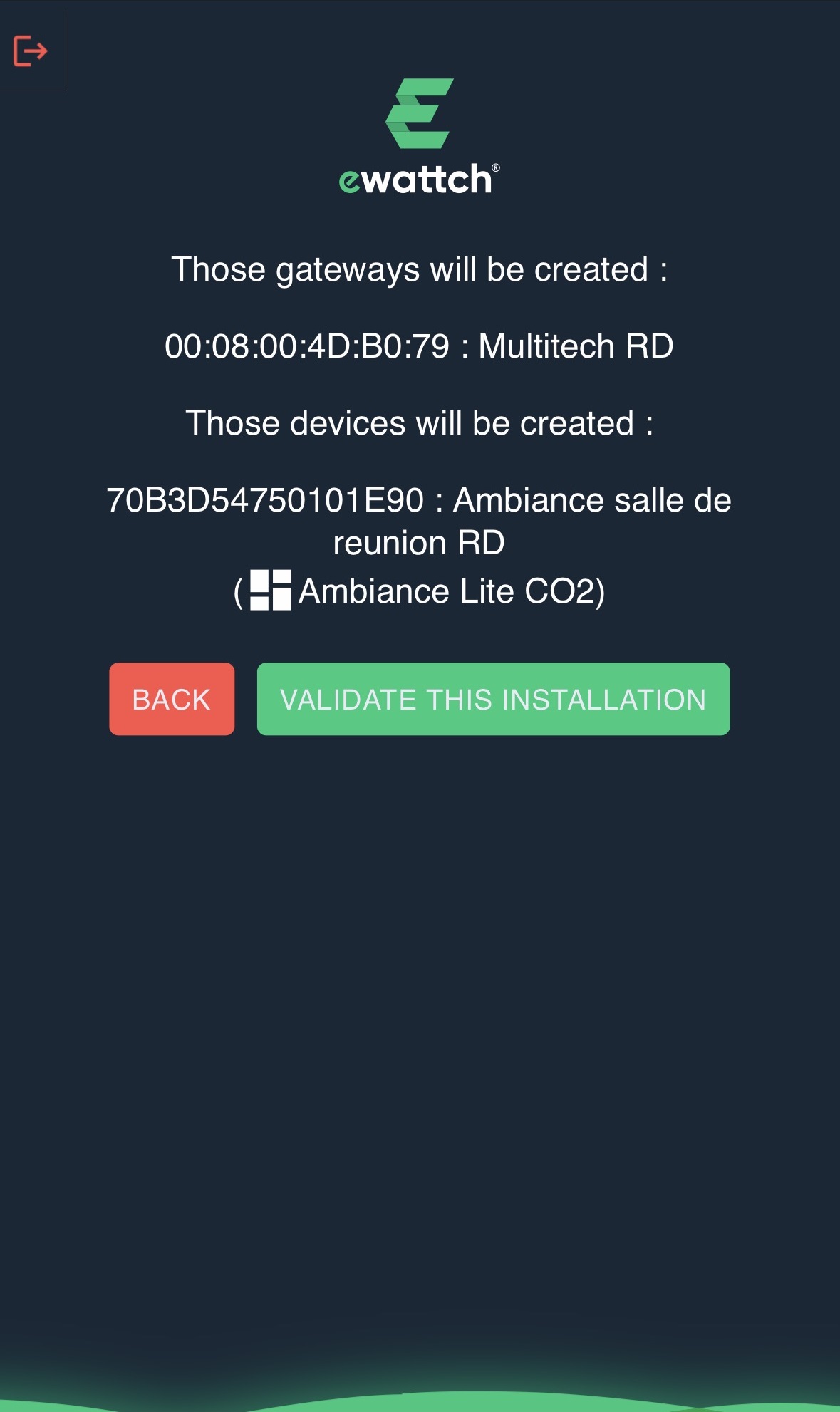
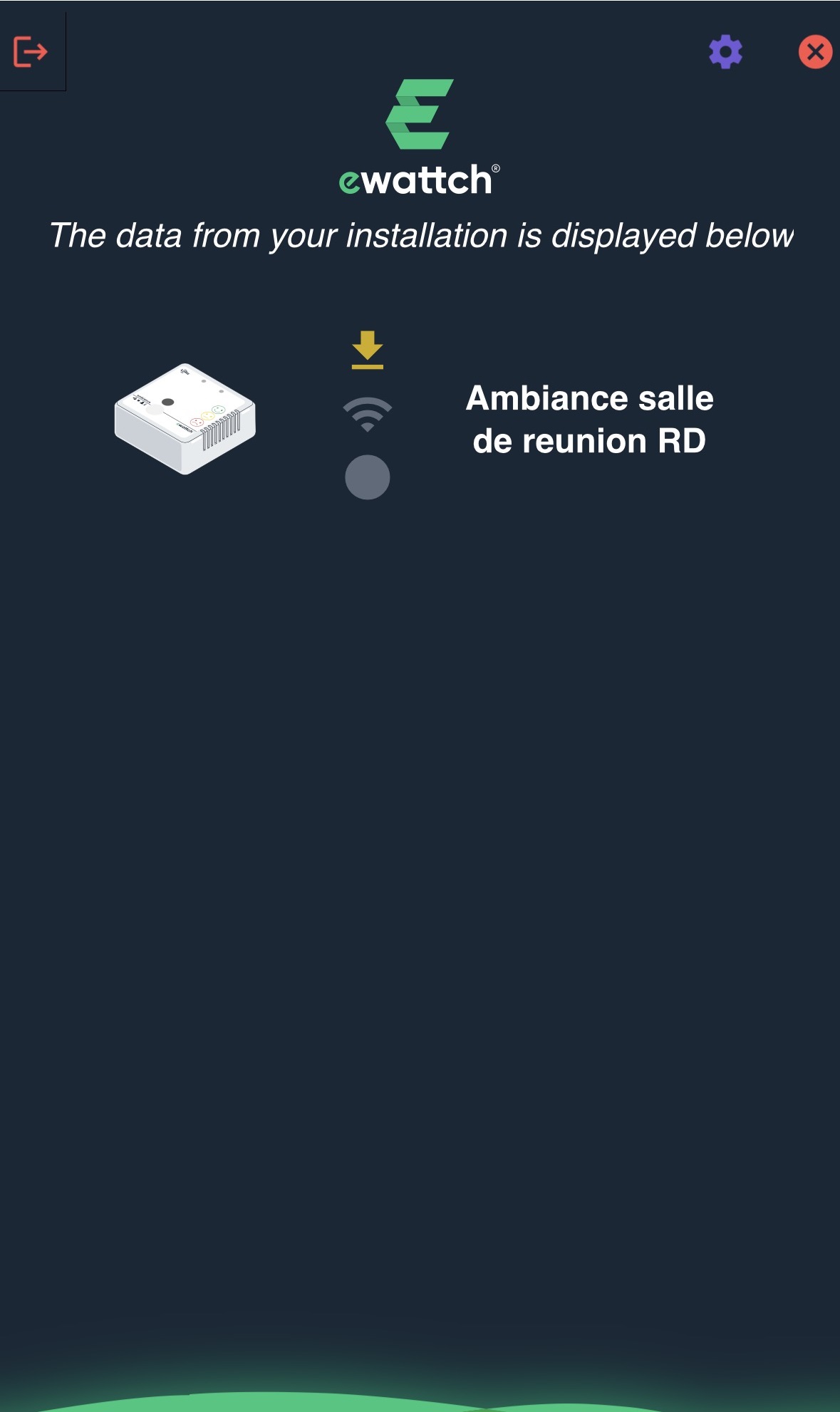
- You will be able to confirm the list of created items and then check whether your product is provisioned and communicating