LoRa Extension
Overview
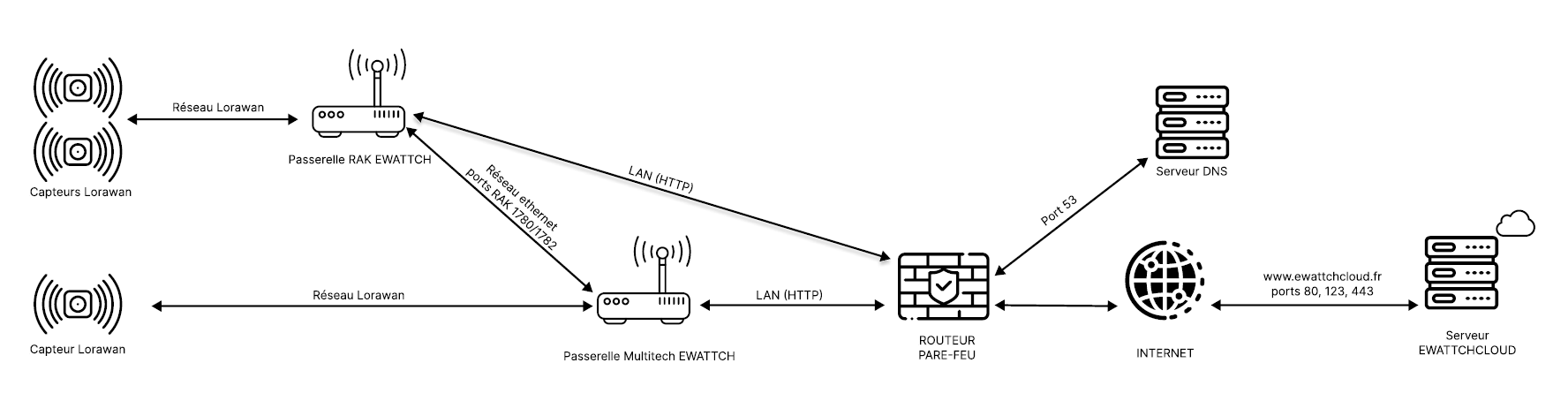
The RAK WisGate Edge Lite 2 complements your Ewattch solution by acting as a packet forwarder to extend the LoRaWAN coverage of an Ewattch Multitech gateway.
Prerequisites
Requirements for extending a LoRaWAN network
- Ewattch Multitech gateway: static IP or DHCP with reserved IP and known address. Ethernet network
- RAK Edge Lite 2 connected to the same Ethernet network as the Ewattch Multitech gateway
- Open ports 80, 123, 443, 1780 and 1782 on the network for the RAK
- NTP server available on the local network
Communication Diagram
Configuration Procedure
Step 1
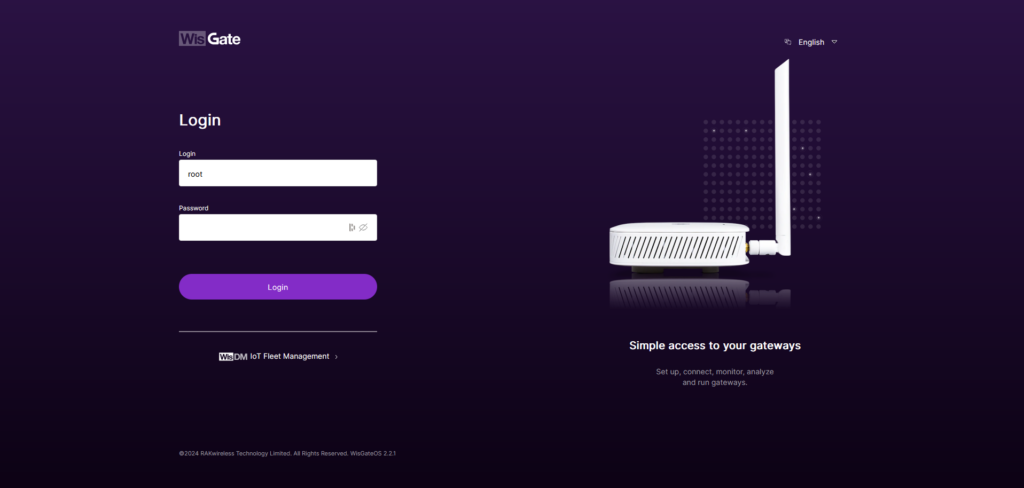
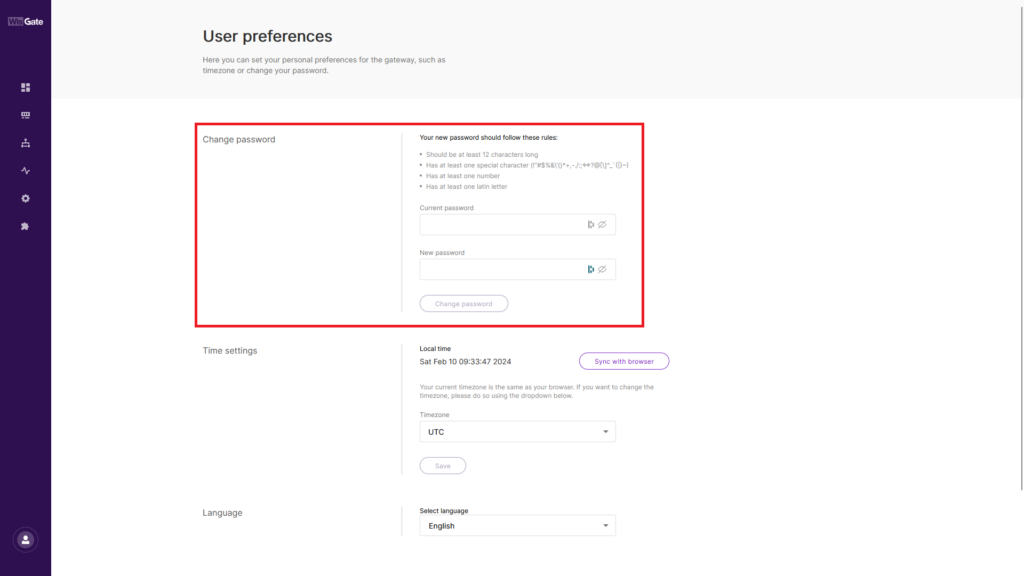
- Connect to the RAK Wi-Fi network (RAK7268V2_XXXX). Enter the IP address 192.168.230.1 in a web browser and log in using the username root and the default password EwattchRak88!.
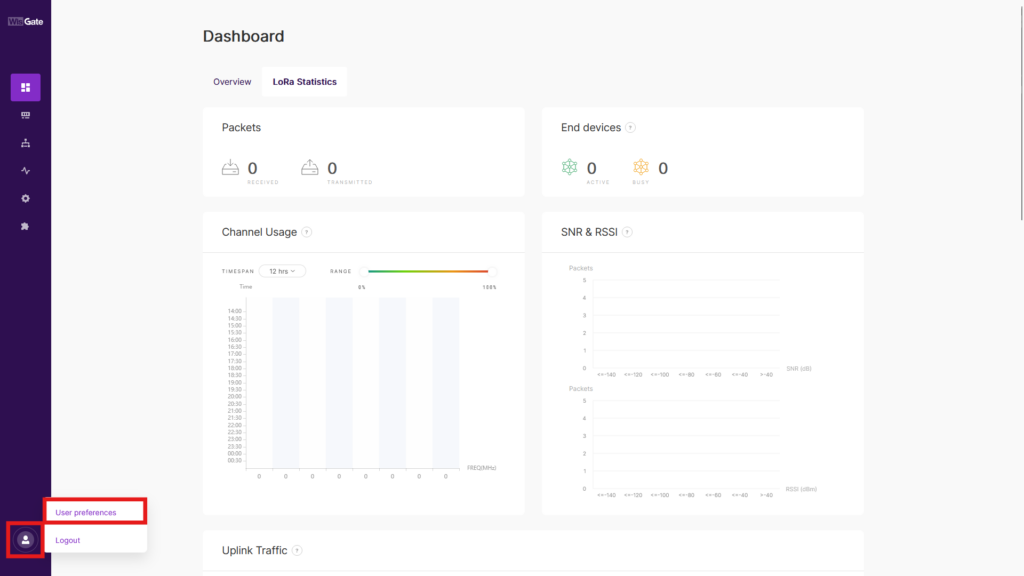
- Make sure to change the password afterwards.
Step 2
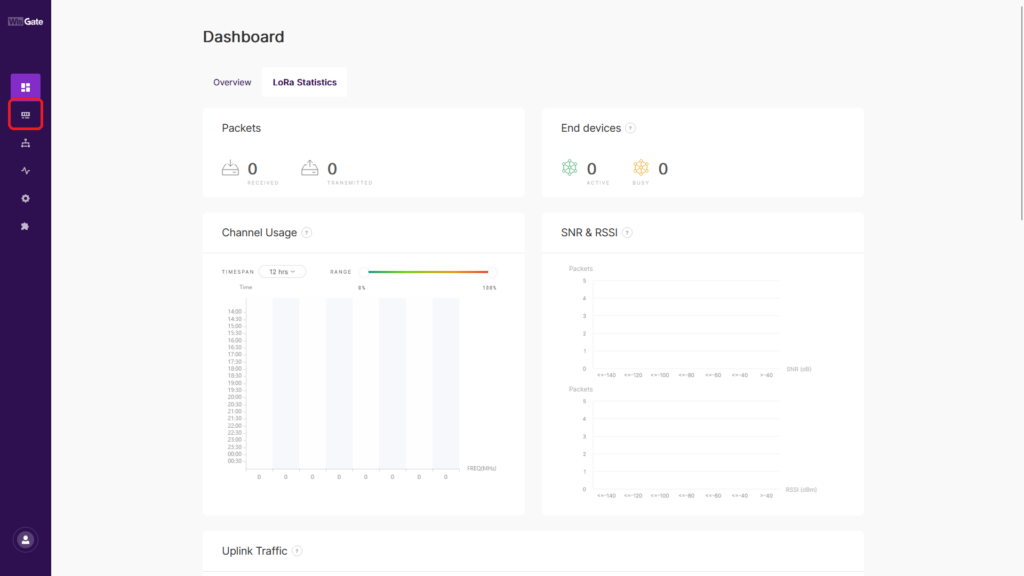
- Once connected, go to the configuration menu: the second icon from the top in the left sidebar.
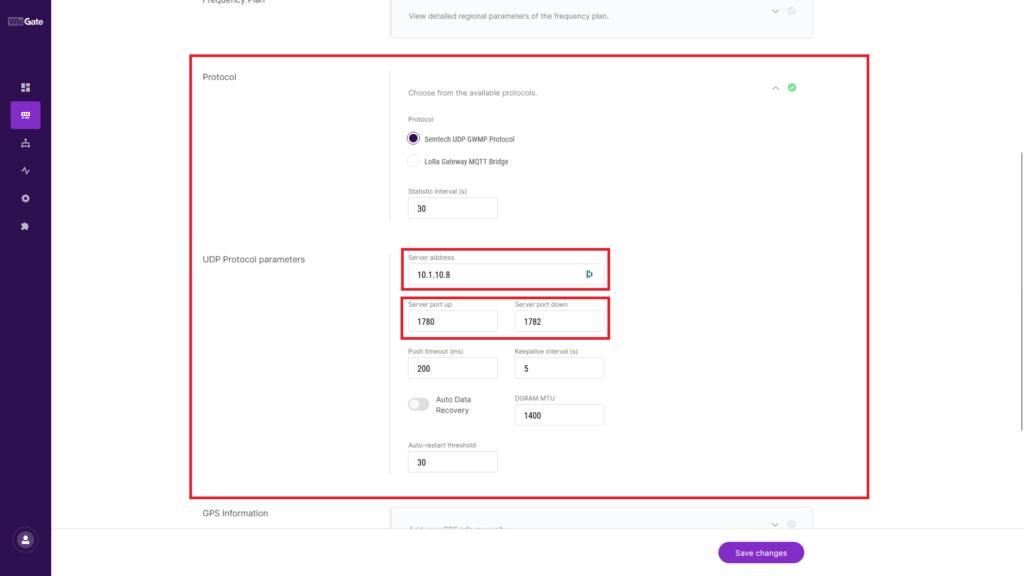
- Expand the Protocol section. In the UDP Protocol parameters section, enter the IP address of the master gateway (Multitech) in the Server address field.
- Verify that Server port up is set to 1780 and Server port down is set to 1782.
Step 3
Save your changes at the bottom right of the page by clicking the Save changes button.

Step 4
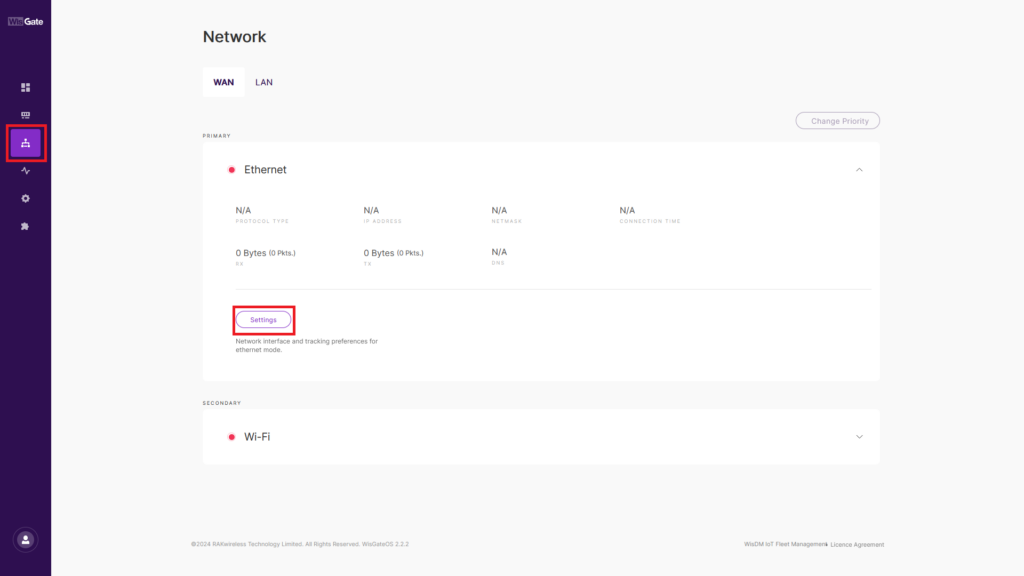
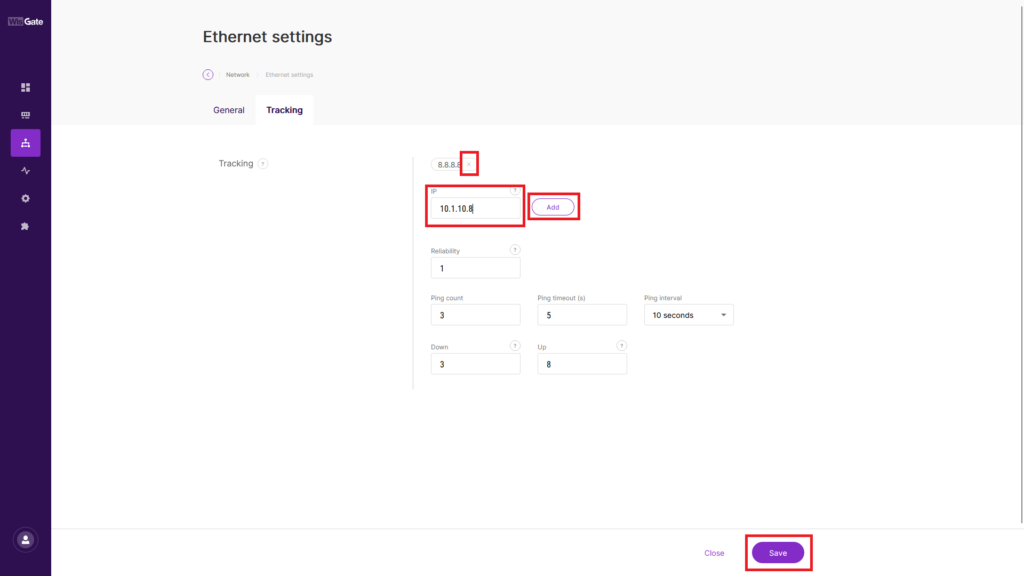
- Go to the Network menu, the third icon from the top in the sidebar.
- Open the Settings section of the Ethernet network.
- Enter the IP address of the Multitech gateway used for communication with the RAK and click ADD.
- Remove the ping to the address 8.8.8.8, then save the configuration.
Step 5
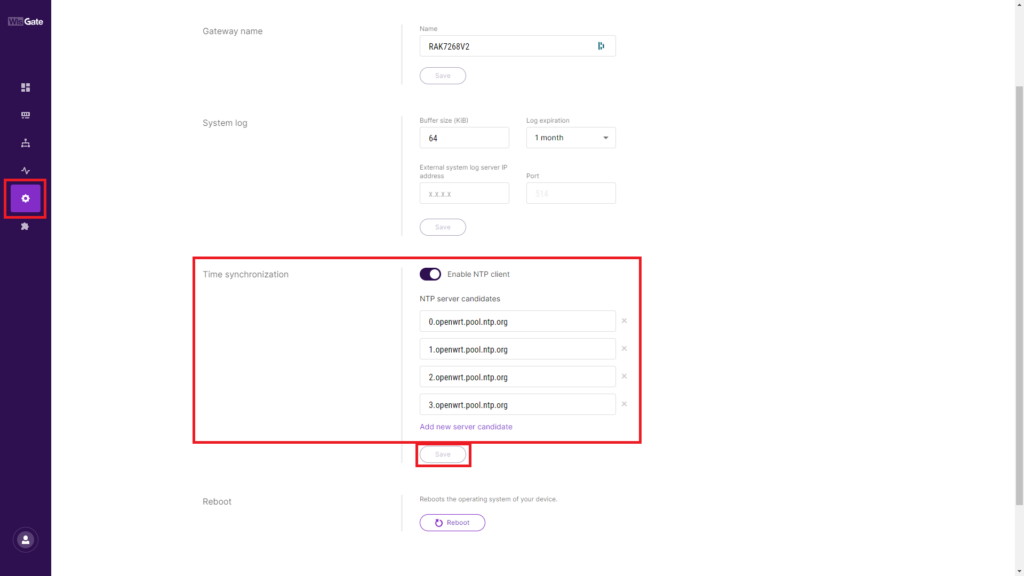
- Go to the Settings menu, the fifth icon from the top in the sidebar.
- Open Time synchronization.
- Enter the authorized NTP server address(es) available on your network.
- Remove unnecessary entries.
- Click Save.
Appendix
Forwarding Verification
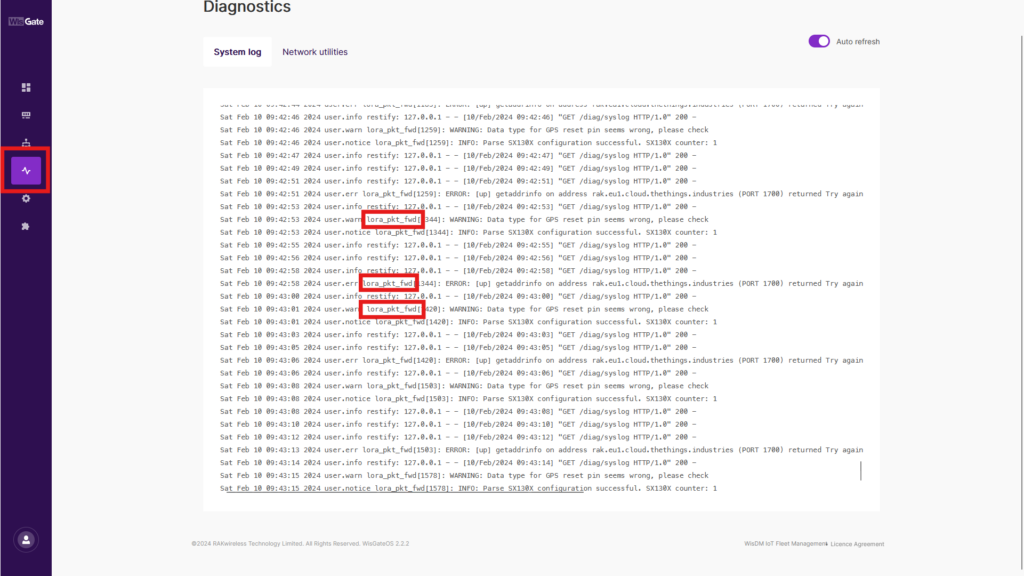
- From the Diagnostics tab of the WisGate interface, you can view the packet forwarding logs. They contain entries such as lora_pkt_fwd[…].