
SynapseCore Legacy – Quick Start Guide
Objective
This document describes the procedure for connecting to the SynapseCore Legacy web server in order to configure it and add it as a device in the EWATTCH Cloud.
Prerequisites
Required to get started
- Installation location with Ethernet or 4G coverage
- Internet access from the Ethernet network
- Power outlet near the SynapseCore
- SynapseCore in factory configuration
- Account and structure on Ewattch CLOUD
Startup Procedure
Step 1 – Direct Ethernet connection from PC to SynapseCore
- Connect the SynapseCore power supply
- Configure the computer’s Ethernet connection with a fixed IP address: 192.168.1.100
- Check that the SynapseCore has fully started (PWR LED solid on and ACT LED off)
- Connect the Ethernet cable to the eth0 port, open your web browser (Google Chrome is used in this documentation), and enter the following IP address in the address bar: http://192.168.1.197
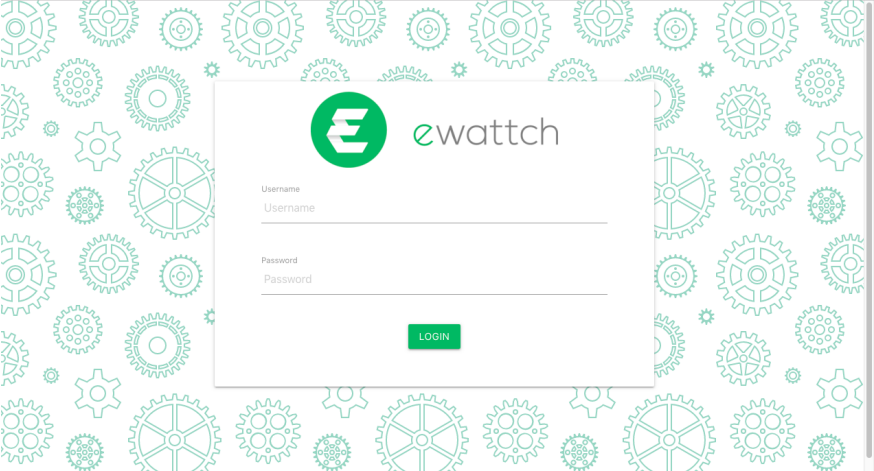
- You will be prompted to create an administrator account to continue. Enter the information you wish to use to log in.
- Enter your credentials; you now have access to the SynapseCore configuration interface.
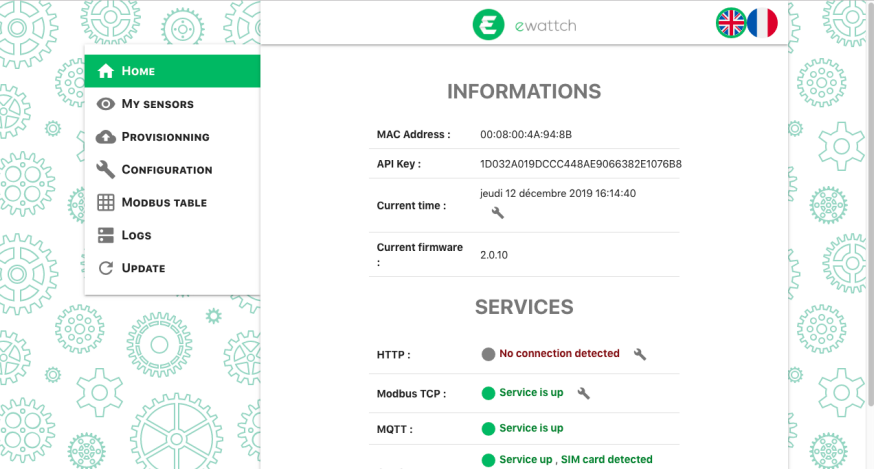
Step 1 – Ethernet connection via network (if not direct)
- Connect the SynapseCore power supply
- Check that the SynapseCore has fully started (PWR LED solid on and ACT LED off)
- Connect the Ethernet cable to the eth0 port, open your web browser (Google Chrome is used in this documentation), and enter the following hostname in the address bar: synapsecore-<last 3 parts of the MAC address in lowercase>.local (for example, for a SynapseCore with MAC address 00:01:02:A3:B4:C5, the hostname will be synapsecore-a3b4c5.local)
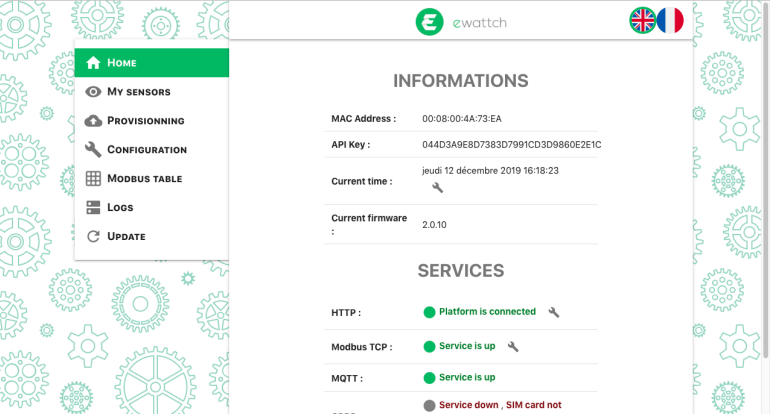
- You will be prompted to create an administrator account to continue. Enter the information you wish to use to log in.
- Enter your credentials; you now have access to the SynapseCore configuration interface.
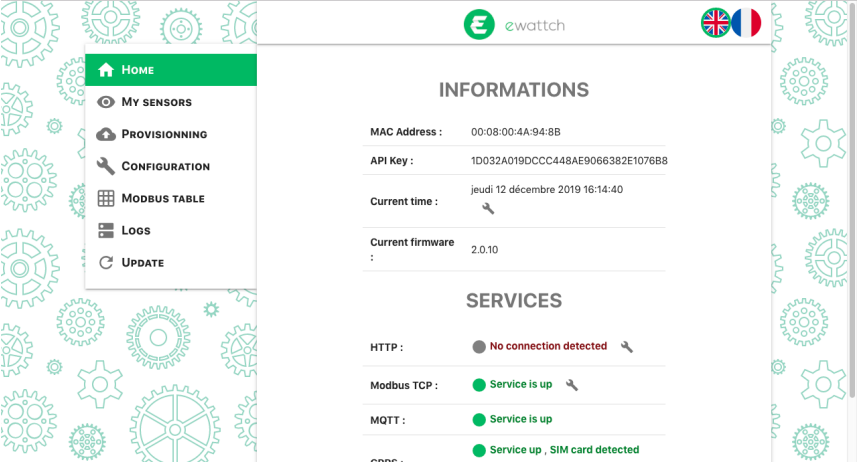
Step 2 – Adding the SynapseCore device to Ewattch Cloud
- While remaining connected to the SynapseCore, log in to Ewattch Cloud at https://ewattch.cloud and go to the desired structure. Click + Add a device in the Devices section.

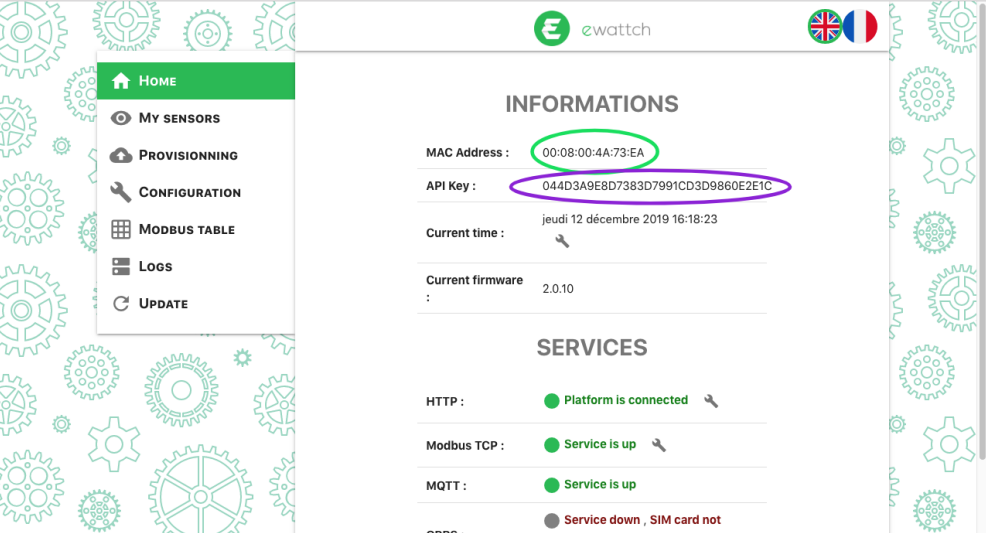
- Enter the name you wish to assign to the device, then enter the MAC address and the API key (these last two pieces of information are available in the Home tab of the SynapseCore web server). Click Save.

Step 3 – Sensor provisioning via Ewattch Cloud
The SynapseCore must be communicating with Ewattch Cloud (otherwise provisioning will not be applied to the SynapseCore).
- Log in to Ewattch Cloud at https://ewattch.cloud, go to the desired structure, then access the device to which the sensors must be added by clicking on its name.

- Click Product List then PROVISION

- Select the sensor type (here, EWATTCH sensor), then select the model.


- Enter the desired name, then fill in the fields Deveui, Appeui and Appkey, then click Save.

- To view the sensor, click Product List on the gateway. Once the sensor is provisioned on the SynapseCore, its status will change to Provisioned.
